
 Roadmap
Shipping a Roadmap Item
Mark a roadmap item as shipped - it moves to the Shipped status, becomes visible on the public board, and emails everyone who voted.
Shipping is the moment a feature moves from “we planned to build this” to “we built it.” It takes one click, notifies your voters automatically, and can create a matching changelog entry at the same time.
Where to find the Ship button
Open the Roadmap page in the admin panel. Click a card to open its detail panel. If the item’s current status is not already “Shipped”, a green Ship button appears at the top of the detail panel.
The Ship button only appears on items that are not yet in a Shipped status. Once an item has been shipped, the button is replaced with a note showing the linked changelog entry (if one was created).
What happens when you click Ship
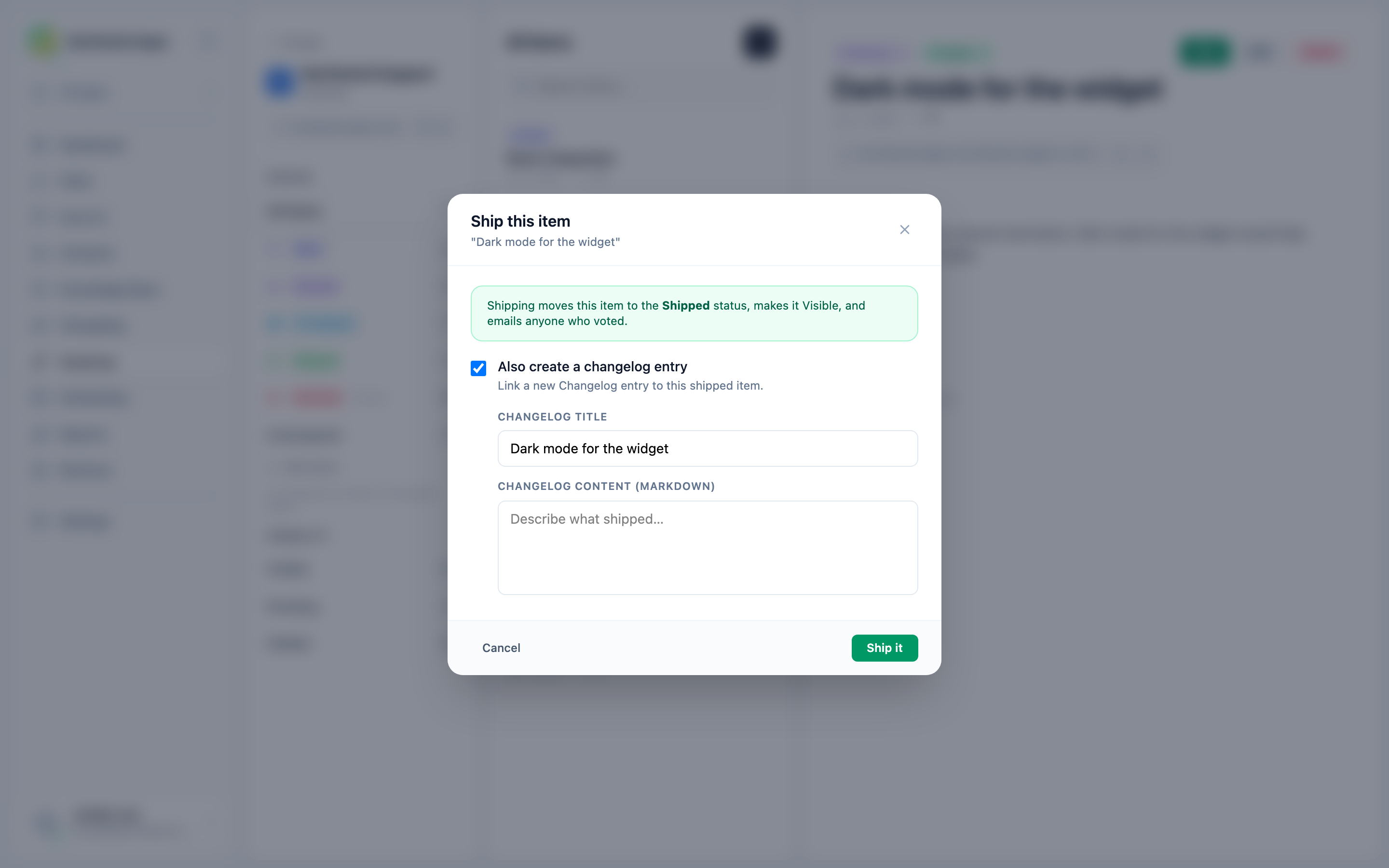
Clicking Ship opens the Ship modal. From here:
- The item’s status is moved to Shipped (the status whose name matches “shipped” in your custom statuses, case-insensitive). If no status with that name exists, the status is left unchanged but the item is still marked as shipped internally.
- The item’s visibility is set to Visible - it appears on the public roadmap board for customers to see.
- Every contact who voted on the item and has an email address receives a notification email telling them the feature they requested has shipped.
- Optionally, a new changelog entry is created and linked to the item (see below).
Creating a changelog entry at ship time
Check Also create a changelog entry in the modal to create a changelog post at the same time.
When checked, two additional fields appear:
- Changelog title - pre-filled with the roadmap item’s title. Edit it to write a customer-facing headline.
- Changelog content (markdown) - write the announcement. Describe what shipped and any relevant details for customers.
The changelog entry is created as visible immediately. It is linked to the roadmap item - the item detail panel shows “Linked changelog entry #N” after shipping.
If you want to draft the changelog entry first before shipping, create it separately in the Changelog section and link it afterward using the Shipped changelog entry field on the roadmap item. See Creating a changelog entry.
Voter email notifications
Convot emails every contact who voted on the item and has a known email address. Anonymous votes (widget votes without an account) do not receive an email, but those voters will see the item appear under the Shipped column on the public board when they visit next.
The emails are sent in the background. There is no rate limit or delay - all voter emails for a given ship event go out together.
After shipping
- The item appears in the Shipped column on the public board.
- Voters who visit the public board see it under the Shipped status.
- The Ship button is replaced in the detail panel with the linked changelog entry reference (if one was created).
- You can still edit the item’s description, title, and other fields after shipping.
Related articles
Was this article helpful?
Thanks for your feedback!