
 Your Account
Profile and password
Update your display name, email, phone, profile photo, and change your password.
Your personal profile controls how your name and photo appear to teammates in the inbox. Go to Settings > Account (/settings/account) to manage it.
Updating your profile
The Profile section has three editable fields:
- Full name - the display name teammates see on messages and assignments.
- Email - your login email. Changing it updates the address used for sign-in and notifications.
- Phone - optional contact number, visible to other agents.
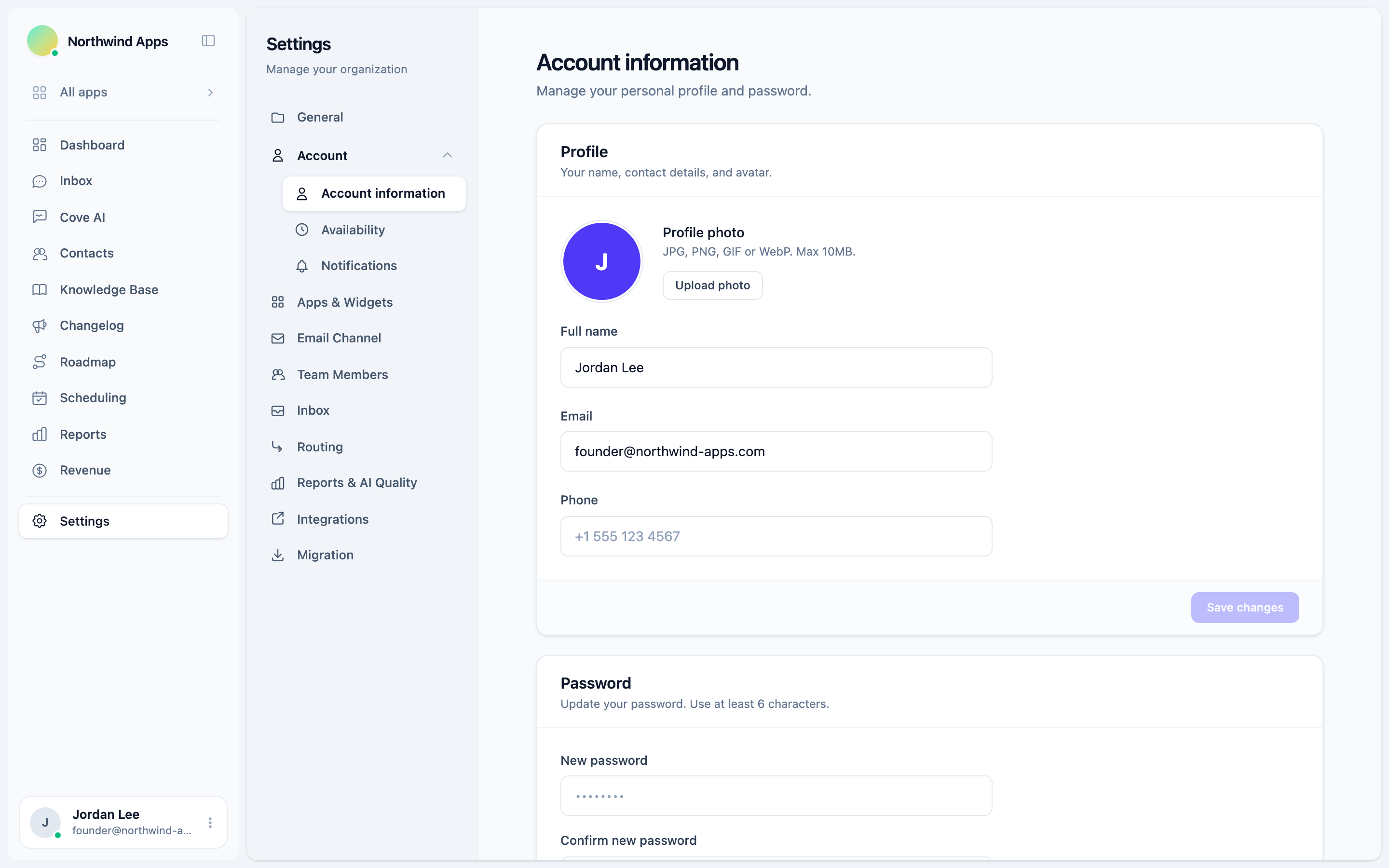
Click Save changes when you are done. The button is disabled until you have made a change.
Changing your email takes effect immediately. Make sure the new address is one you can access before saving.
Profile photo
Your avatar appears next to your messages and in the assignee list.
- Click Upload photo (or Change photo if you already have one).
- Pick a JPG, PNG, GIF, or WebP file up to 10 MB.
- A preview appears instantly. Click Save changes to confirm.
To clear your photo, click Remove next to the preview. Your initials will show as a fallback.
Changing your password
The Password section is below the profile card on the same page.
- Enter a New password (minimum 6 characters).
- Enter the same value in Confirm new password.
- Click Update password.
If the two fields do not match, or the password is fewer than 6 characters, you will see an error before anything is saved.
You do not need to enter your current password to change it. If you think your account has been compromised, change your password here and let your organization owner know.
Was this article helpful?
Thanks for your feedback!