
 Your Account
Agent availability
Control when you appear online - force offline, auto-available, and a per-day work schedule.
Your availability status determines whether incoming conversations get routed to you and how you appear to visitors in the widget. Go to Settings > Account > Availability (/settings/account/availability) to configure it.
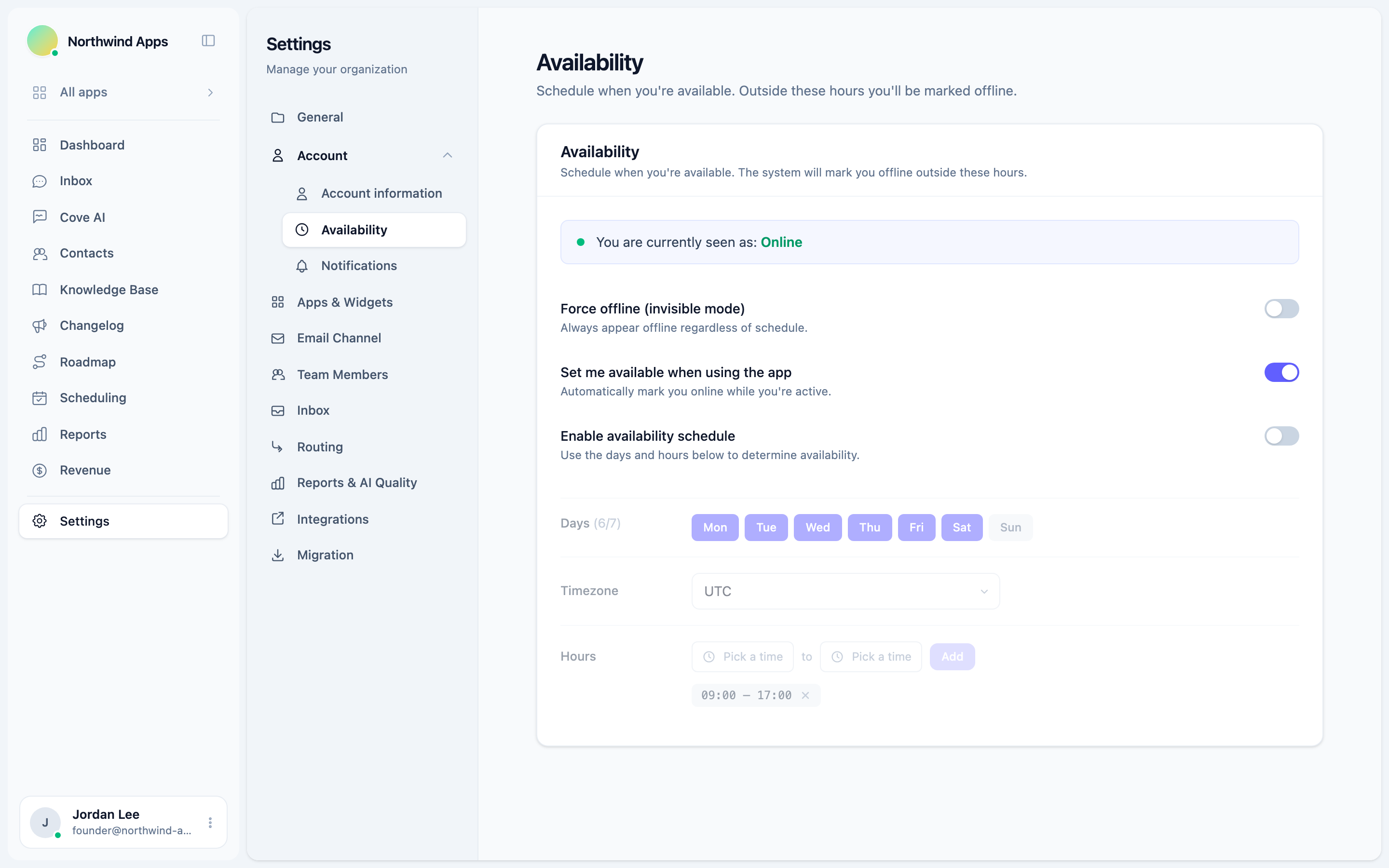
Your current status
The top of the page shows a live banner with your effective availability status: Online, Busy, or Offline. This is the status the system actually uses after applying all of the rules below.
Force offline (invisible mode)
Toggle: Force offline (invisible mode)
When this is on, you always appear offline regardless of your schedule or activity. Use it when you need uninterrupted time and do not want any conversations routed to you.
Turning on force offline overrides everything else. Even if your schedule says you are available, you will show as offline while this toggle is on.
Auto-available when active
Toggle: Set me available when using the app
When this is on, Convot automatically marks you online while you have the app open and are actively using it. When you close the tab or become idle, your status reverts to whatever the schedule (or force offline) dictates.
This is on by default. Turn it off if you prefer to control your status entirely through the schedule.
Availability schedule
Toggle: Enable availability schedule
Enabling the schedule lets you define which days and time slots you are available each week. Outside those windows the system marks you offline automatically.
Days
Click the day buttons (Mon, Tue, Wed, Thu, Fri, Sat, Sun) to toggle them on or off. The counter next to the label shows how many days are active.
Timezone
Pick the timezone that matches your working hours. The schedule is evaluated in the timezone you select, so if you change location you can update this without touching your time slots.
The picker pre-fills with your browser’s local timezone on first use.
Time slots
Each slot has a from time and a to time. To add a slot:
- Set the start time in the first field.
- Set the end time in the second field.
- Click Add. The slot appears as a tag below.
The from time must be earlier than the to time. You can add multiple non-overlapping slots per day (for example, 09:00 to 12:00 and 14:00 to 17:00 for a split schedule).
To remove a slot, click the small X on its tag.
All changes save automatically within half a second of your last edit - there is no Save button on this tab.
How availability affects routing
When a new conversation is created and automatic routing is active, Convot only assigns it to agents who are currently online. If you are offline (force offline on, schedule outside hours, or app not open with auto-available), you will not receive routed conversations until your status returns to online.
See Online agent gating for details on how the routing engine uses availability.
Was this article helpful?
Thanks for your feedback!