
 Canned Responses (Shortcuts)
Creating a Shortcut
Save a canned response as a shortcut so your team can insert it with a slash command in any conversation.
Shortcuts are saved replies your team can insert into conversations with a quick slash command. Use them for your most common answers - refund policies, setup instructions, “thanks for reaching out” openers - anything you type more than a few times a week.
Creating a shortcut
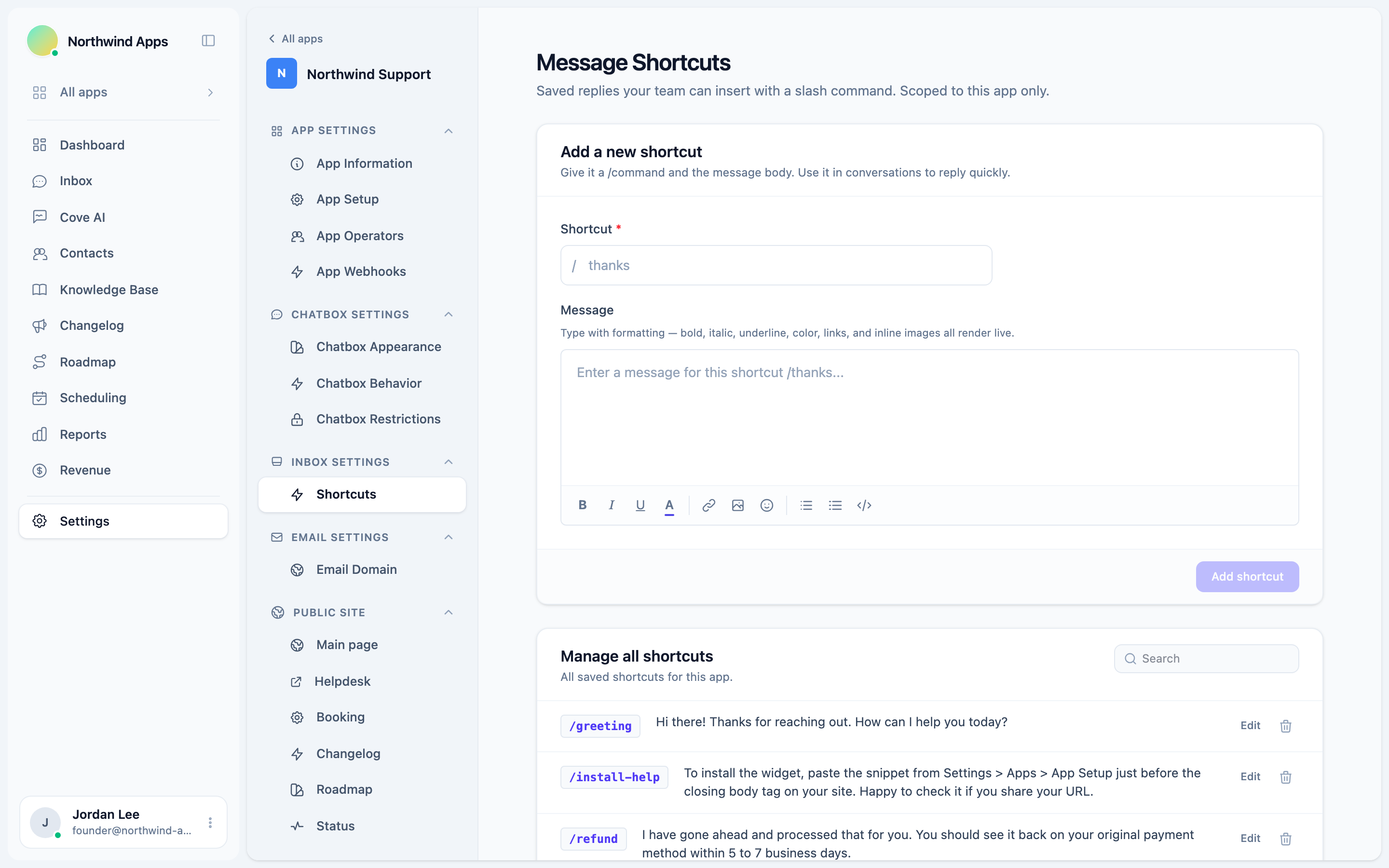
- Go to Settings → Apps → [your app] → Inbox → Shortcuts.
- In the Add a new shortcut form at the top, fill in:
-
Shortcut - the slash command name (e.g.
thanks). The/prefix is shown automatically; you type just the name. Spaces become hyphens. - Message - the reply content. Supports bold, italic, underline, colored text, links, and inline images.
-
Shortcut - the slash command name (e.g.
- Click Add shortcut.
Shortcut names are lowercased and normalized automatically. Thanks becomes /thanks, follow up becomes /follow-up.
Editing and deleting shortcuts
The Manage all shortcuts section below the form lists every shortcut for the app. Click Edit on any row to load it back into the form, make changes, and click Update shortcut. Click the trash icon to delete.
Rich content in shortcuts
The message editor supports formatted content. Your shortcuts can include:
- Bold and italic text for emphasis.
- Hyperlinks.
- Inline images (uploaded via the editor toolbar).
- Lists.
The formatting renders correctly when the shortcut is inserted into a reply.
Searching shortcuts
The manage panel has a search box. Type part of a shortcut name or message body to filter the list.
Scope: per app
Shortcuts are scoped to a single app. Each app has its own set of shortcuts. If you have multiple apps, you need to create shortcuts separately for each one. See Per-app shortcuts for more detail.
Next steps
- Using shortcuts in a reply - how to insert a shortcut from the inbox composer.
- Per-app shortcuts - managing shortcuts across multiple apps.
Was this article helpful?
Thanks for your feedback!