
 Canned Responses (Shortcuts)
Using Shortcuts in a Reply
Insert a saved shortcut into a conversation reply using the slash trigger or the Shortcuts panel.
There are two ways to insert a shortcut from the inbox composer.
Method 1: Slash trigger (fastest)
While typing in the reply composer, type / followed by the shortcut name. A small picker appears above the composer showing matching shortcuts:
- Type
/in the message field to open the picker. - Continue typing characters to filter by shortcut name (e.g.
/thankto find/thanks). - Click the shortcut you want, or use the arrow keys and press Enter.
- The shortcut content is inserted into the composer, replacing the
/you typed.
You can continue editing the inserted content before sending.
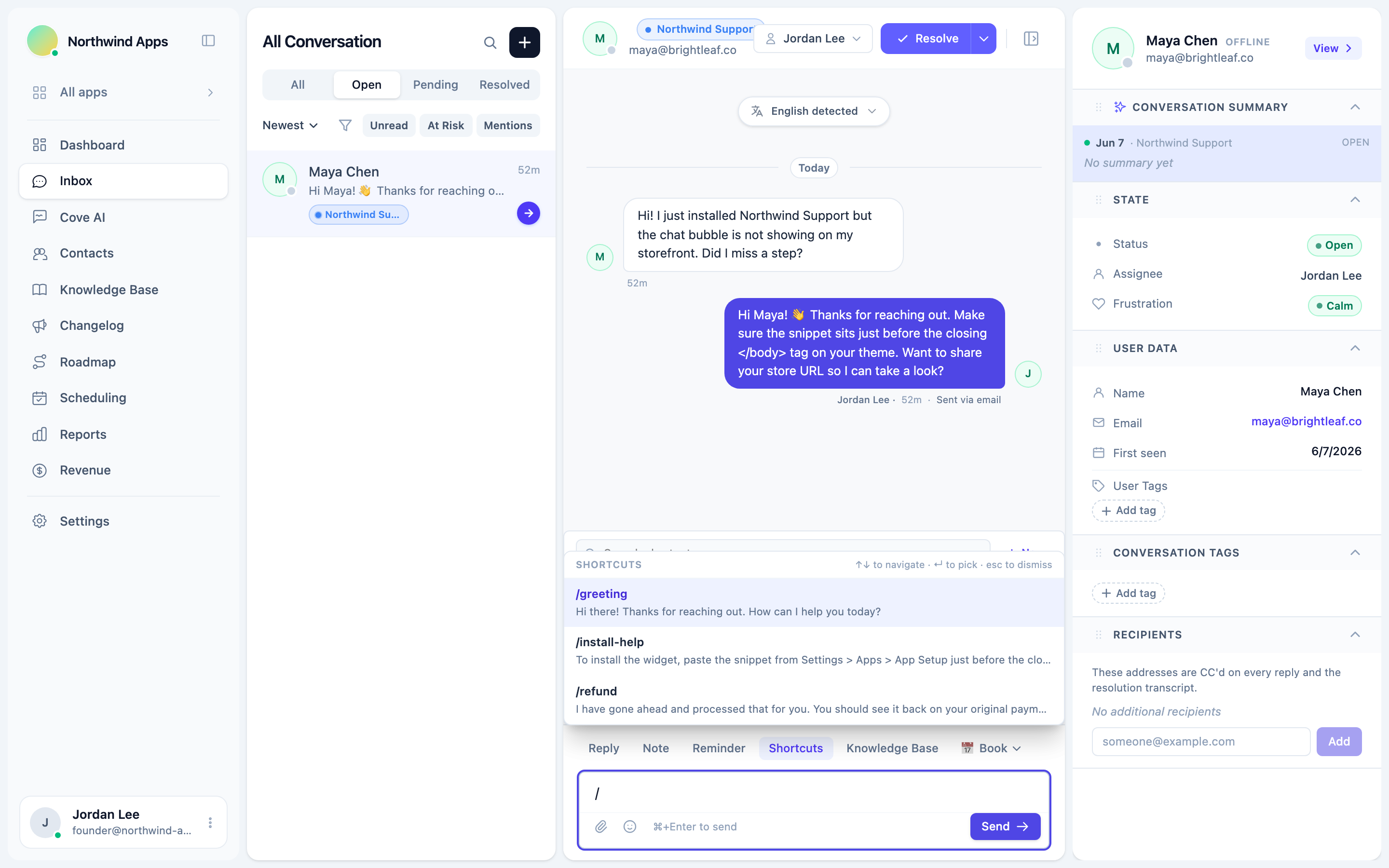
The picker shows up to 6 matching shortcuts. If you have many shortcuts, keep names short and distinctive so the right one filters to the top quickly.
Method 2: Shortcuts panel
The composer has a tab row above the message field. Click the Shortcuts tab to open the Shortcuts panel:
- Open a conversation in the inbox.
- Click Shortcuts in the tab row above the composer.
- A searchable list of all shortcuts for the app appears.
- Click any shortcut to insert it into the reply draft and switch back to the editor automatically.
The Shortcuts panel also lets you create a new shortcut without leaving the inbox - click New in the top-right corner of the panel.
The shortcut inserts at the cursor
When you use the slash trigger, the shortcut content replaces the /command text at your cursor position. If you had typed other text before the /, that text is preserved.
When you insert from the Shortcuts panel, the content is inserted into the current reply draft.
Notes vs. replies
Shortcuts work in both the Reply and Note composer modes. When in note mode, inserting a shortcut inserts into the private note - it will not be sent to the customer.
Next steps
- Creating a shortcut - add a new shortcut from settings.
- Per-app shortcuts - shortcuts are scoped per app.
Was this article helpful?
Thanks for your feedback!