
 Changelog
Creating a Changelog Entry
Write and publish a changelog entry from the admin panel, including title, content, type, language, and publish date.
The Changelog lets you announce features, improvements, and fixes to your users. Each entry lives on your public changelog page and, optionally, inside the widget so users see what’s new without leaving your app.
Where to find it
Go to Changelog in the left nav. The page lists all your entries with their type badge, status, publish date, and view count.
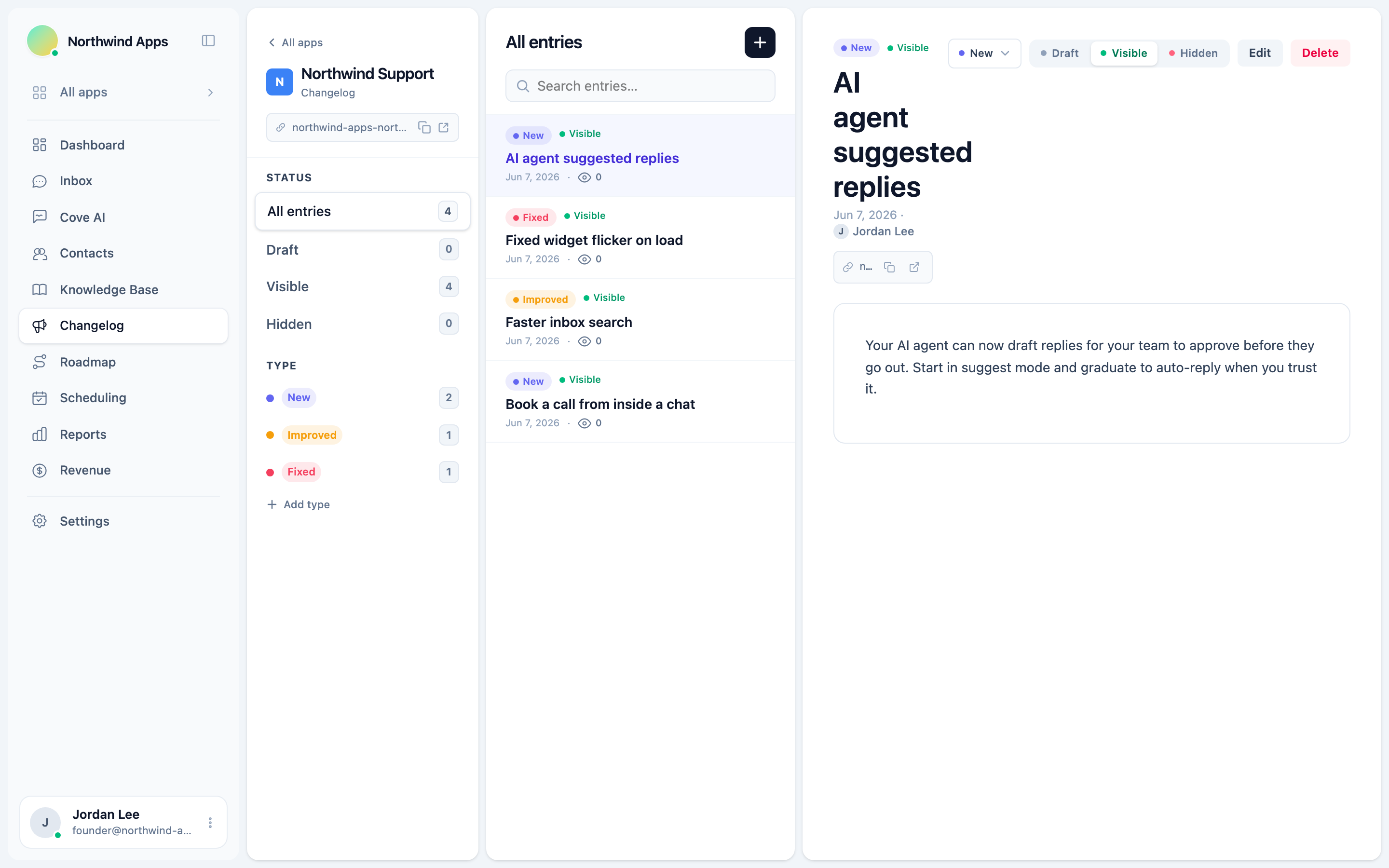
Creating an entry
- Click New entry in the top-right corner.
- Fill in the title - keep it short and scannable (e.g. “Custom merge tags for emails”).
- Write the body using the Markdown editor. You can use headings, bullet lists, code blocks, and inline images.
- Pick a type from the dropdown - this applies the colored tag (e.g. “New”, “Improved”, “Fixed”). If you have custom types, they appear here too. See Changelog types.
- Set the status:
- Draft - saved but not visible to users.
- Visible - published. If you set a future publish date, it goes live at that time.
- Hidden - previously published; pull it off the page without deleting it.
- Optionally set a publish date to schedule when it appears. If you leave it blank and set status to Visible, it publishes immediately.
- Pick the language if your help center is multi-language. Each language gets its own entry.
- Click Save.
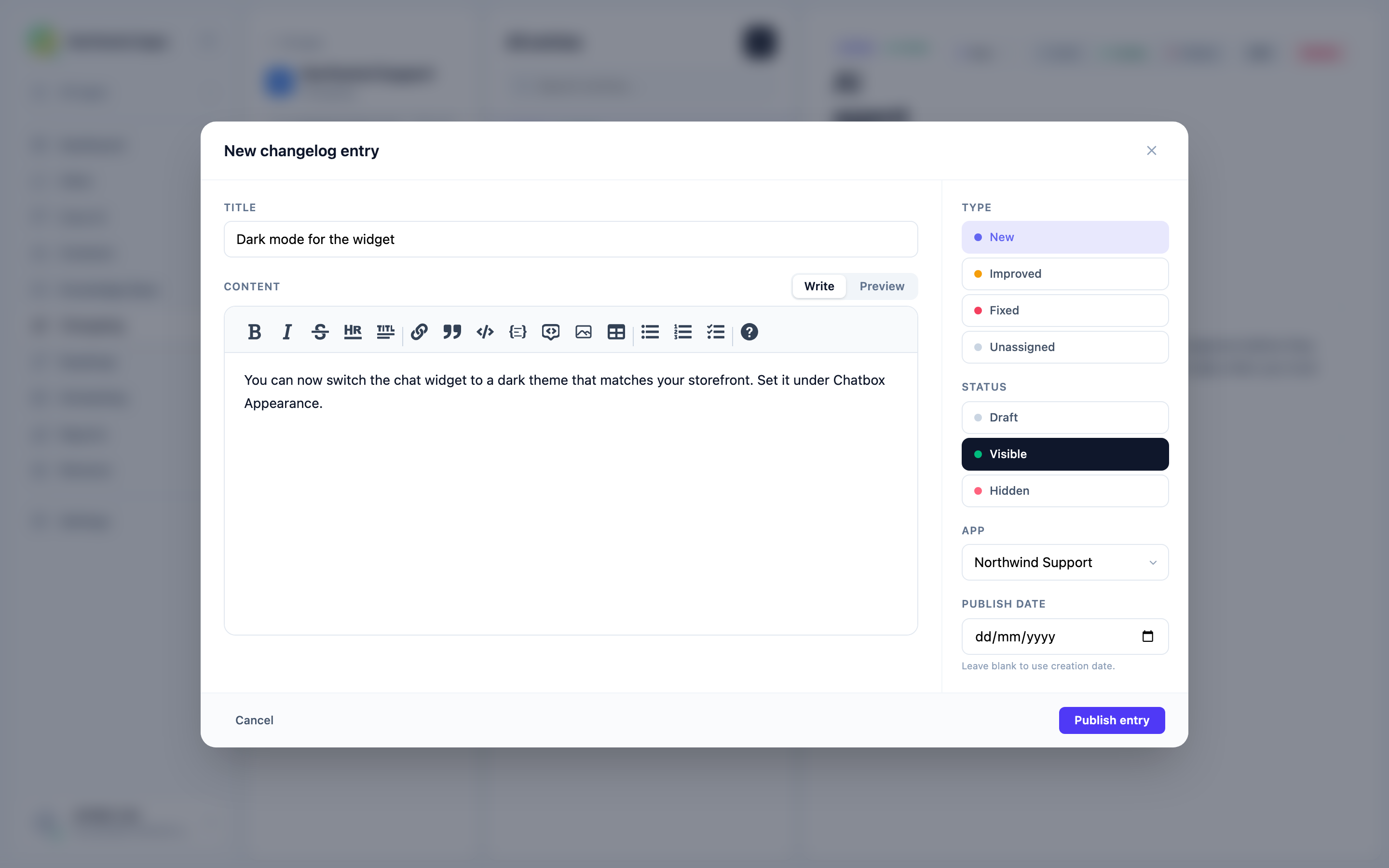
The slug is auto-generated from the title. Each entry gets a public permalink like https://yourapp.convot.help/en/changelog/your-entry-title.
Editing and deleting
Click any row in the list to open the editor. Change any field and save. To delete, open the entry and use the delete option at the bottom.
View count - each time a visitor opens the entry’s permalink or reads it inside the widget, the views_count increments. You can see it in the list column.
Next steps
- Changelog types - customize the labels and colors.
- Your public changelog page - what users see.
- Showing the changelog in the widget - surface updates inside your app.
Was this article helpful?
Thanks for your feedback!