
 Changelog
Showing the Changelog in the Widget
Enable the Changelog section in your widget so users see a "What's new" card right inside your app without visiting a separate page.
Your changelog can surface inside the chat widget as a “What’s new” section - users tap a tab or card and see your latest updates without leaving your app.
Enabling the Changelog section
- Go to Settings → Apps → [your app] → Chatbox → Appearance.
- Under Widget sections, toggle on Changelog.
- Save. The widget now shows a changelog tab alongside your other active sections.
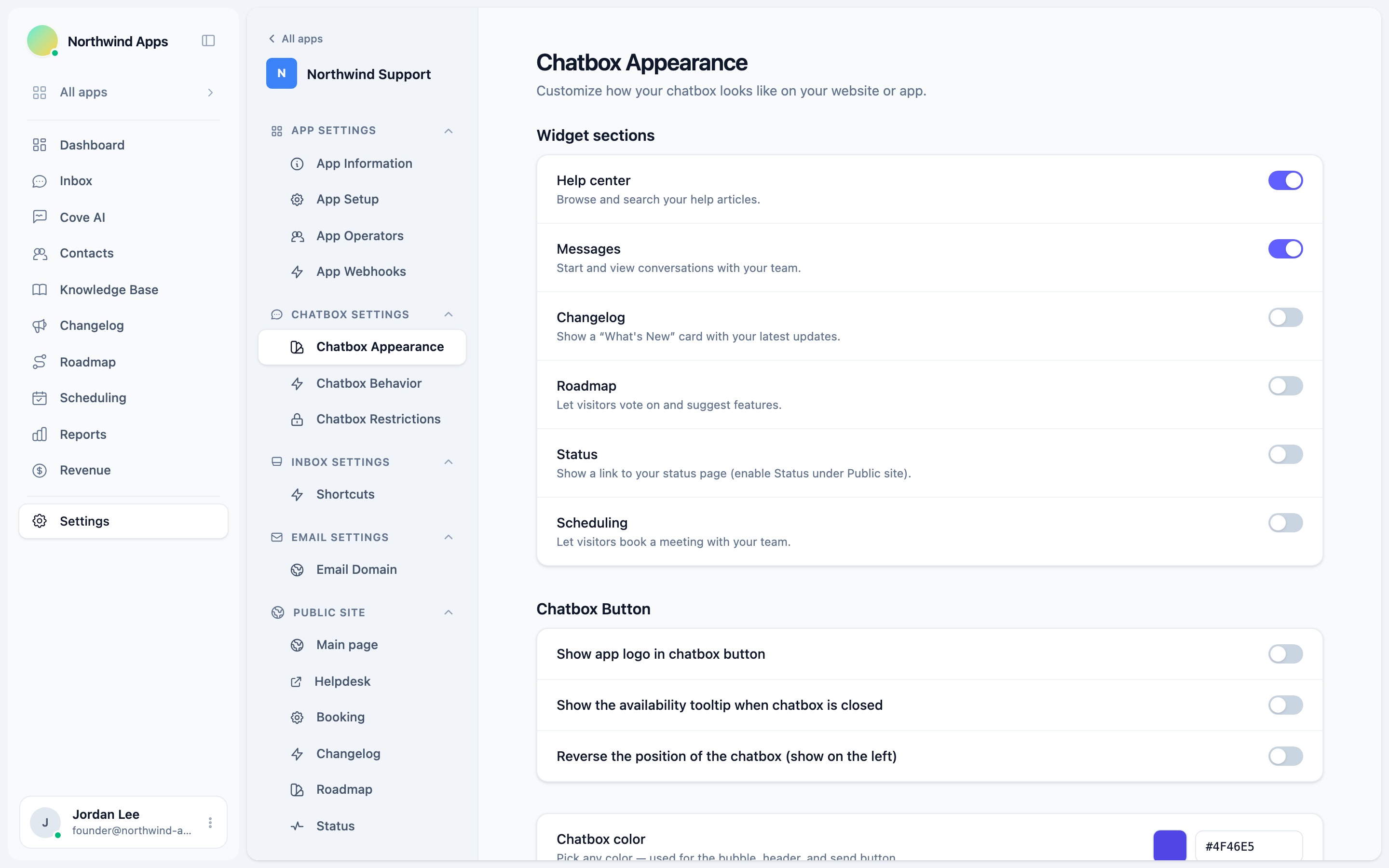
The Changelog section is off by default. Turning it on doesn’t affect your public changelog page - that stays live regardless.
What users see in the widget
When the Changelog section is enabled, the widget’s Home tab shows a “What’s new” card highlighting the most recent published entries. Users can:
- See the entry title, type badge, and date.
- Click an entry to read the full content inside the widget (no page navigation).
- Navigate back to the entry list.
A small unseen badge appears on the widget button when you’ve published new entries since the user last opened the changelog inside the widget. The badge clears once they view the changelog list.
Which entries appear
Only entries with status Visible and a past publish date appear in the widget - the same set as the public page. Draft and hidden entries are never shown to users.
Combining with other sections
You can have multiple sections enabled at once: Help, Messages, Changelog, Roadmap, Status, and Scheduling. Each active section becomes a navigation tab in the widget. See your Chatbox Appearance settings to configure which tabs show.
Next steps
Was this article helpful?
Thanks for your feedback!