
 Email Channel
Connecting Email Support
Enable the email channel so support emails arrive as conversations in your Convot inbox.
The email channel lets customers email your support address and have those emails land in the same Convot inbox as your live chat conversations. Your team replies once, and the customer gets the response by email.
How it works
- A customer emails your support address (e.g.
[email protected]). - Your email provider forwards a copy to a Convot inbox address.
- A new conversation opens in Convot. Any agent can reply.
- The customer receives your reply as a normal email.
Your existing email provider continues to receive and store the original emails - Convot only processes the forwarded copy.
Enabling the email channel
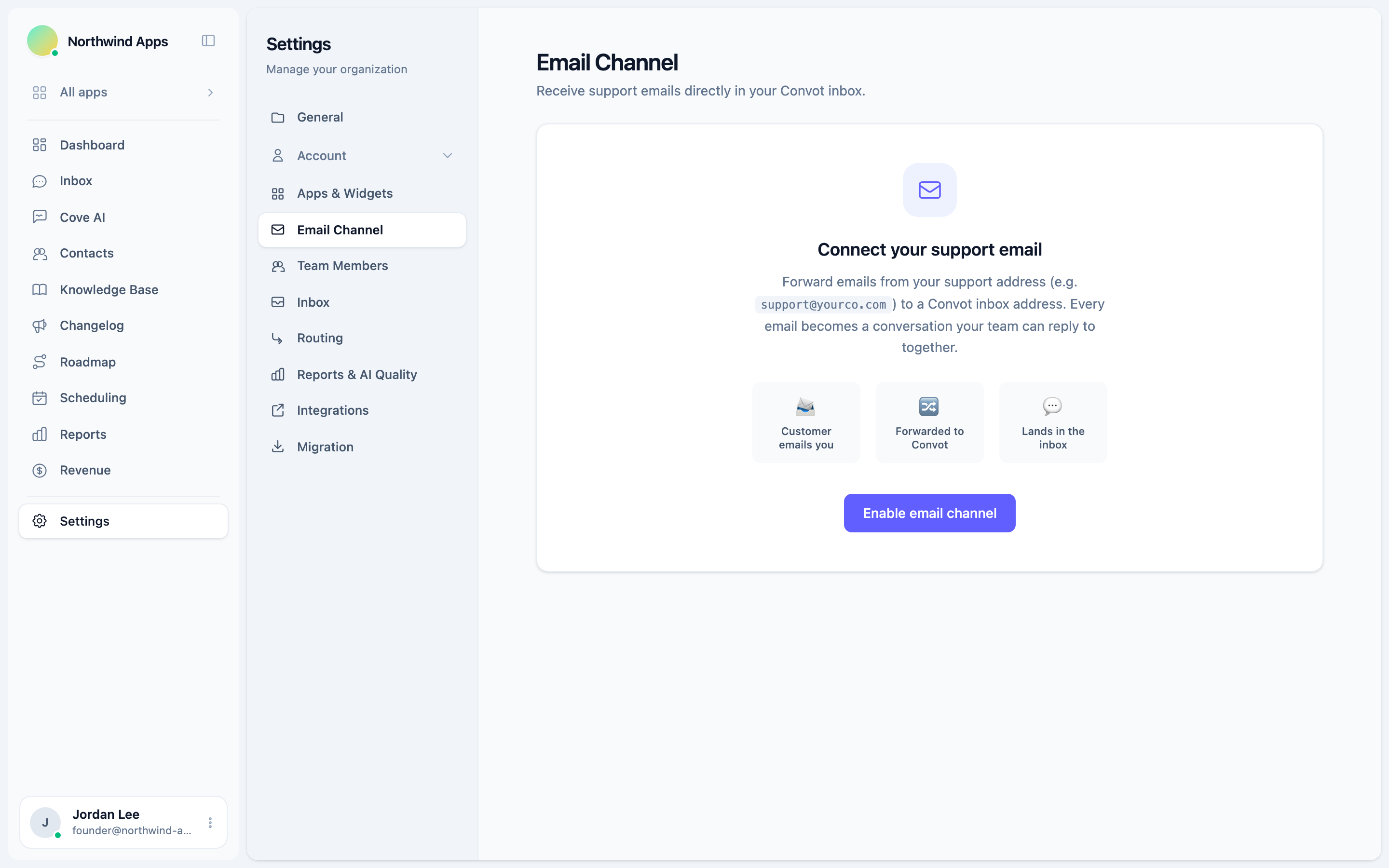
- Go to Settings → Email (under your organization settings, not per-app).
- Click Enable email channel.
- Convot creates a unique inbox address for your organization.
Setting up forwarding
After enabling, you will see your Convot inbox address on the settings page. Copy it, then:
- Log in to your email provider (Gmail, Fastmail, Zoho, Google Workspace, etc.).
- Find the Forwarding or Mail forwarding setting.
- Add the Convot inbox address as a forwarding destination and confirm it.
New emails to your support address will appear as conversations in Convot within seconds.
Do not set Convot as the primary MX record for your domain. Use email forwarding only. Your existing provider continues to receive and store the original emails.
Multiple support addresses
To forward multiple support addresses (e.g. support@, billing@, hello@), set up forwarding from each address to the same Convot inbox address. All emails land in the shared inbox and can be distinguished by the original To: address shown in the conversation.
Removing the email channel
To stop receiving emails, go to Settings → Email and click Remove. Existing conversations are not deleted - only new emails will stop arriving.
Next steps
- Custom email domain - send replies from your own domain instead of Convot’s default.
- Spam filtering - block unwanted senders.
- How inbound email becomes a conversation - what happens to the email after it arrives.
Was this article helpful?
Thanks for your feedback!