
 Email Channel
Custom Email Domain
Send replies from your own domain instead of Convot's defaults by adding DNS records and verifying your subdomain.
By default, Convot sends email from [email protected] and routes customer replies through chat-mail.convot.io. A custom email domain replaces these with your own subdomain so customers see your brand in their inbox.
Before you start
- You need the email channel enabled. See Connecting email support.
- You need access to your DNS provider (Cloudflare, Route 53, Namecheap, etc.).
- Use a subdomain you control, not your apex domain. Good examples:
mail.yourco.com,support.yourco.com. Do not useyourco.comdirectly.
Setting up your custom domain
- Go to Settings → Apps → [your app] → Email → Domain.
- Enter your subdomain (e.g.
mail.yourco.com) and click Generate DNS records. - Convot shows a table of DNS records to add at your DNS provider.
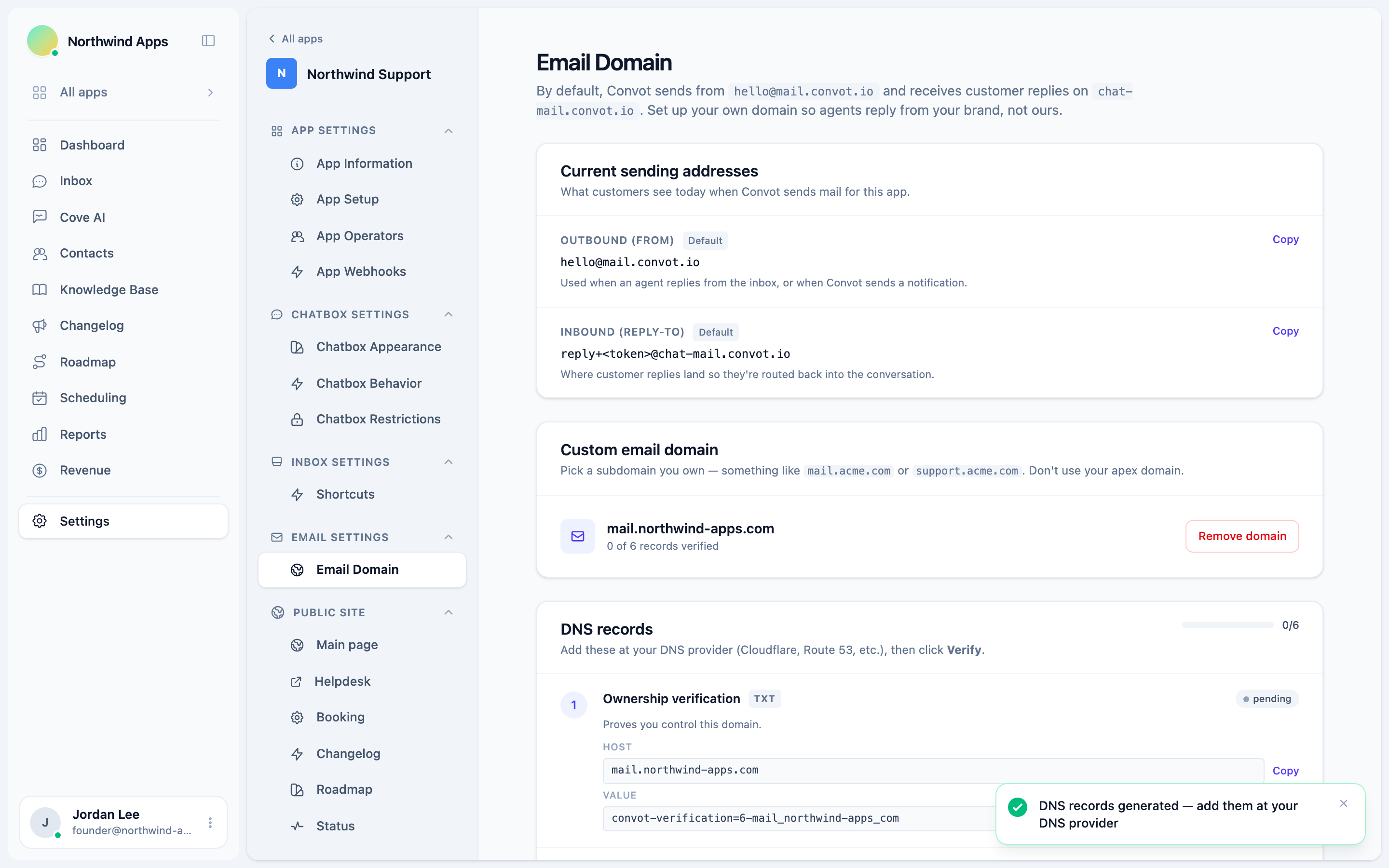
DNS records to add
Convot generates six records. Add all of them at your DNS provider:
| Record | Type | Purpose |
|---|---|---|
| Ownership verification | TXT | Proves you control the domain. |
| Mail exchange (MX) | MX | Routes inbound customer replies into Convot. Priority: 10, value: inbound.postmarkapp.com. |
| Sender policy (SPF) | TXT | Authorizes Convot to send mail from your domain. |
| DKIM signing | TXT | Signs outgoing mail so inboxes trust it. |
| Return-Path | CNAME | Catches bounces and improves deliverability. |
| DMARC policy | TXT | Protects your domain from spoofing. |
Each record shows a Host and Value field you can copy directly from the Convot UI.
Verifying the records
After adding all records at your DNS provider:
- Go back to Settings → Apps → [your app] → Email → Domain.
- Click Verify domain setup.
- Convot checks each record and shows its status (verified, pending, or missing).
DNS changes can take a few minutes to a few hours to propagate. If records show “pending”, wait 10-15 minutes and try verifying again.
The MX record directs customer replies (their replies to your emails) into Convot. The other records protect deliverability and prevent spoofing. All six are needed for full functionality.
After verification
Once all records are verified, Convot begins sending mail from [email protected] and routes replies through yourdomain.com. Customers see your brand in their inbox, not Convot’s.
Removing a custom domain
Click Remove domain on the Email Domain settings page. Convot immediately reverts to the default convot.io addresses. You can add a new domain at any time.
Troubleshooting
Record shows “missing” after waiting an hour: Double-check the Host and Value fields you entered. A common mistake is adding an extra .yourdomain.com to the end of the Host when your DNS provider appends it automatically.
MX record conflict: If your subdomain already has an MX record (e.g. from a previous mail setup), remove it before adding Convot’s MX record.
Next steps
Was this article helpful?
Thanks for your feedback!