
 Inbox & Conversations
Inbox Overview
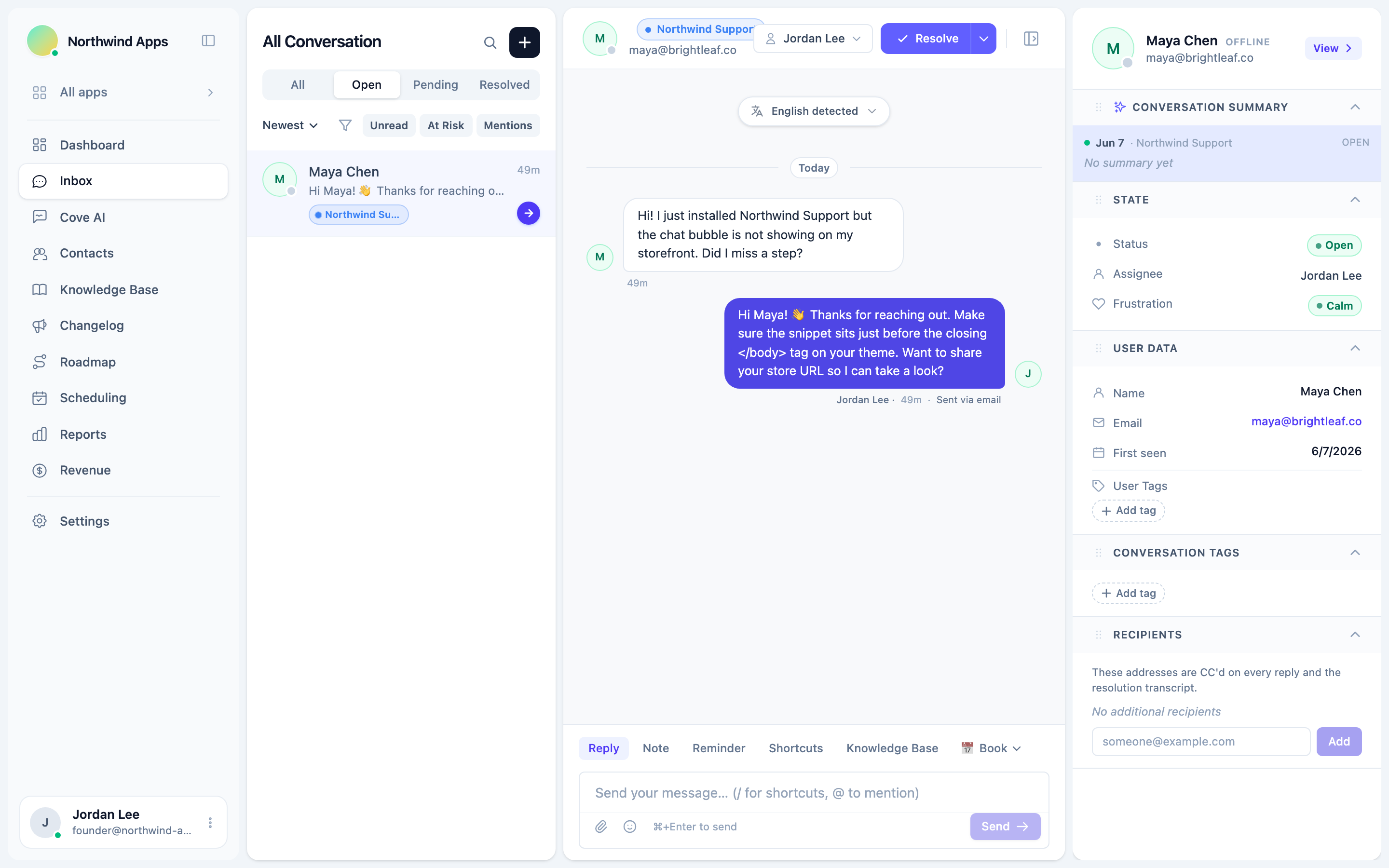
A tour of the four-panel inbox layout - app picker, conversation list, message thread, and contact sidebar.
Everything in Convot flows through the inbox at /chat. Here is what you see and what each panel does.
The four panels
Left nav - Feature navigation
The narrow left strip holds the app picker and the feature icons (Chat, Contacts, Reports, Settings, etc.). If your organization has more than one app, click the app logo to switch between them. The inbox filter follows the selected app automatically.
Conversation list
The second panel shows all conversations matching your current filter. Each row shows:
- The contact’s avatar and name (or email for anonymous visitors).
- The app the conversation belongs to (shown as a colored pill when you have multiple apps).
- The last message preview.
- The unread count badge when there are unread messages.
Use the Search field at the top to find conversations by keyword or contact name. The filter menu (funnel icon) lets you narrow by status, assignee, tags, channel, country, and more. Your saved views also appear here - see Saved views.
The list auto-refreshes in real time. New messages bubble the conversation to the top.
Message thread
The center panel is the conversation itself. It shows every message - incoming (customer), outgoing (agent), and private notes - in chronological order. The top bar shows:
- The contact’s name, email, and online/idle/offline status.
- The app pill.
- The assignee picker (click to assign or reassign).
- The Resolve button (and the caret for Mark Pending and Escalate).
The composer at the bottom is where you type. Switch between Reply (customer-facing) and Note (internal only) using the tab bar inside the composer.
Contact sidebar
The right panel slides in when you open a conversation. It shows the contact’s profile, tags, custom data, conversation history across all apps, and (if you use the Shopify integration) their shop metrics. Click View to open the full contact profile page.
You can collapse the sidebar by clicking the sidebar toggle in the top bar.
Status tabs and quick filters
Above the conversation list you’ll find quick-access toggles:
- Open - conversations that need attention.
- Pending - conversations marked as waiting on the customer.
- Resolved - closed conversations (reopen automatically when the customer replies).
- All - everything.
There are also one-click filters for Unread, Mentions, At risk, and Customer pending.
What’s next
Was this article helpful?
Thanks for your feedback!