
 Inbox & Conversations
Escalating to Engineering
Route a conversation to engineering when it needs a technical answer, a bug fix, or a feature request - with priority, an owner, and a live SLA badge.
When a conversation is too technical for a support reply, confirms a bug, or reveals a feature gap, you can escalate it directly to an engineering owner without leaving the inbox.
The three escalation types
| Type | Button label | What it signals | Conversation status |
|---|---|---|---|
| Need an answer | “Need an answer” | Too technical - engineering needs to provide the answer | on_hold |
| Needs a fix | “Needs a fix” | Confirmed bug - engineering needs to ship a fix | on_hold |
| Feature request | “Feature request” | Wants something you don’t have yet - links to a roadmap item | parked |
on_hold means the conversation is paused for an engineering response. parked means it is waiting on the roadmap, not on a reply.
See Conversation statuses for the full status reference.
How to escalate
- Open the conversation.
- Click the caret (down-arrow) next to the Resolve button in the top bar to open the actions menu.
- Click Escalate to engineering. A popover opens.
- Pick the escalation type (“Need an answer”, “Needs a fix”, or “Feature request”).
- Pick an Owner from the team member list (the person accountable for responding).
- For Needs a fix: choose a priority (P0 - P3).
- For Feature request: optionally link the conversation to an existing roadmap item.
- Optionally enter a note for engineering.
- Click Escalate (or Add to roadmap for feature requests).
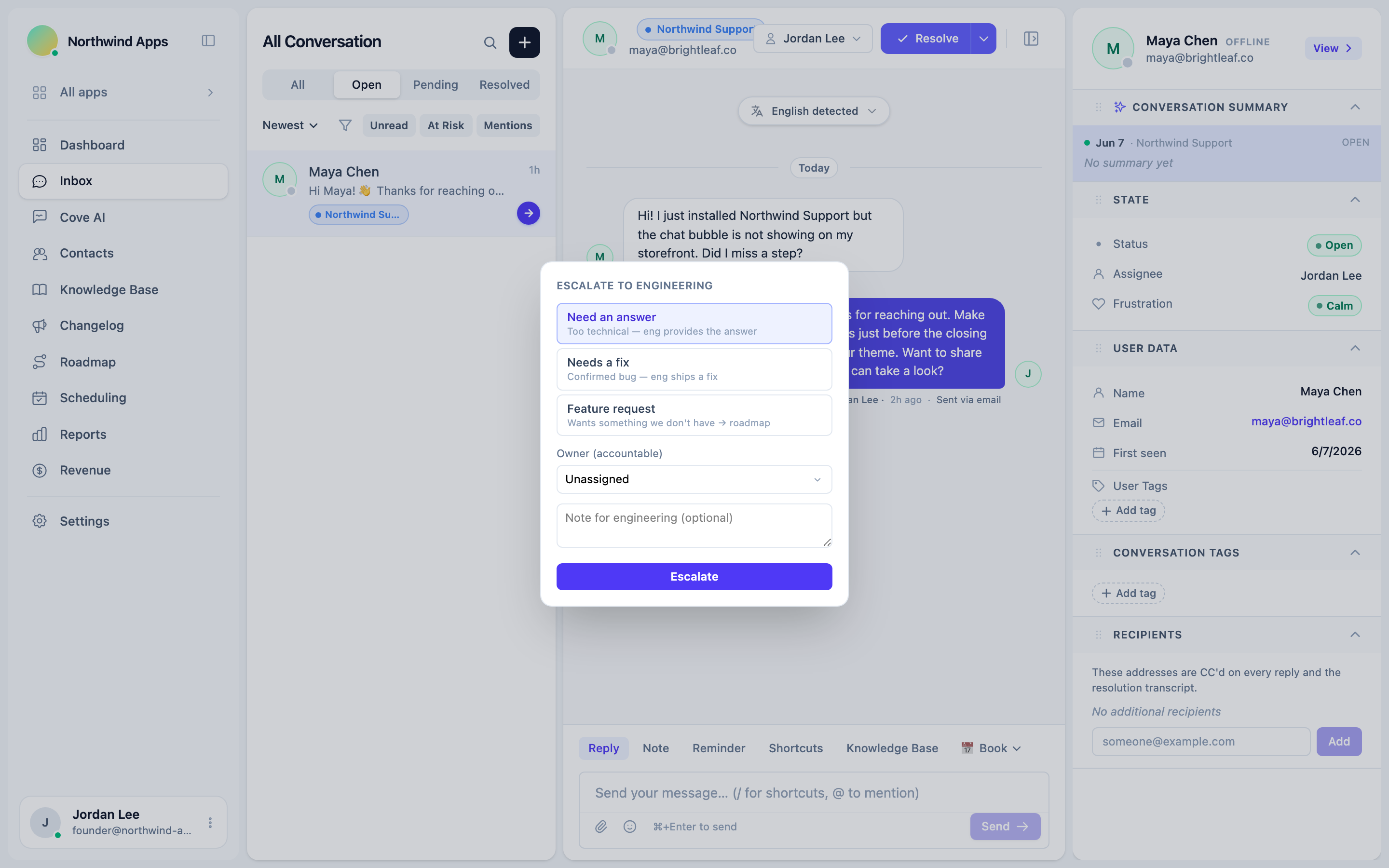
When an owner is assigned, a private note is posted in the thread that @mentions them. They get a notification immediately via the standard mention pipeline - no separate email needed. When there is no owner, a plain activity line is logged instead.
Replacing an existing escalation
If the conversation already has an active escalation, the popover shows an “Active escalation” banner. Click Replace with new to open a fresh form and overwrite the previous escalation.
Bug priority levels
Priority applies only to “Needs a fix” escalations. The levels are P0 (drop everything), P1, P2 (default), and P3 (low). Priority drives the nudge cadence: P0 bugs are re-pinged to the owner much more frequently than P3.
The escalation badge in the sidebar
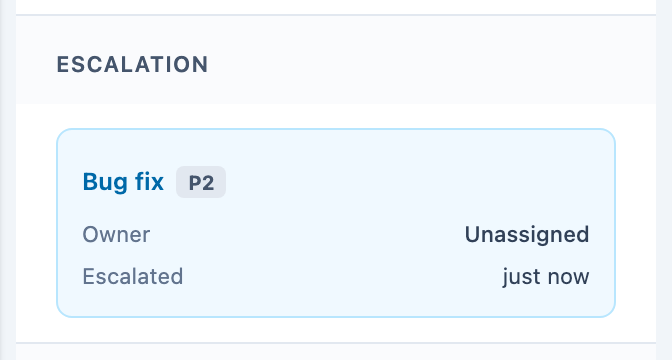
Once escalated, an Escalation card appears in the contact sidebar on the right. It shows:
- The escalation type label and priority badge (for bugs).
- Owner - who is accountable.
- Escalated - how long ago the escalation was opened.
- Acknowledged - when the owner opened the conversation (auto-stamped on first view, no manual action needed).
- The optional note you entered.
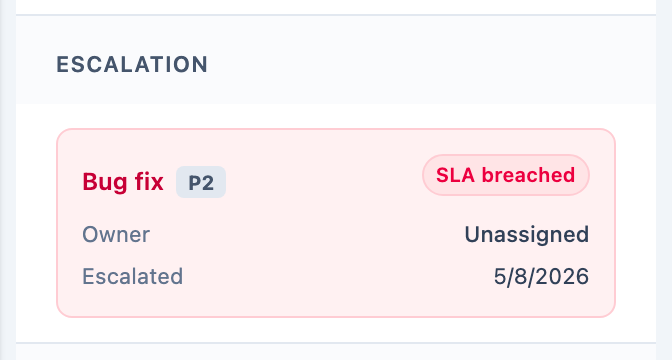
If the escalation has exceeded its SLA window, the card turns red and shows an SLA breached badge. The SLA window depends on type and priority - bugs have a tighter SLA at higher priorities.
Sending an update to the customer mid-escalation
While waiting for engineering, you can send the customer a status message without closing the escalation:
- Click the caret next to Resolve.
- Click Send update to customer.
- Edit the pre-filled message (“Quick update - our team is still working on this…”) or write your own.
- Click Send.
The message is sent as a normal outgoing reply. The escalation stays active.
Resolving the escalation
When engineering has answered or shipped the fix:
- Click the caret next to Resolve.
- Click Resolve escalation.
This marks the escalation as resolved and returns the conversation to Open status so the support agent can see it in their queue, reply to the customer, and close the conversation normally.
Resolving the escalation does NOT resolve the conversation - it just hands it back to support. The agent still needs to reply to the customer and click Resolve to close it out.
Was this article helpful?
Thanks for your feedback!