
 Routing & Assignment
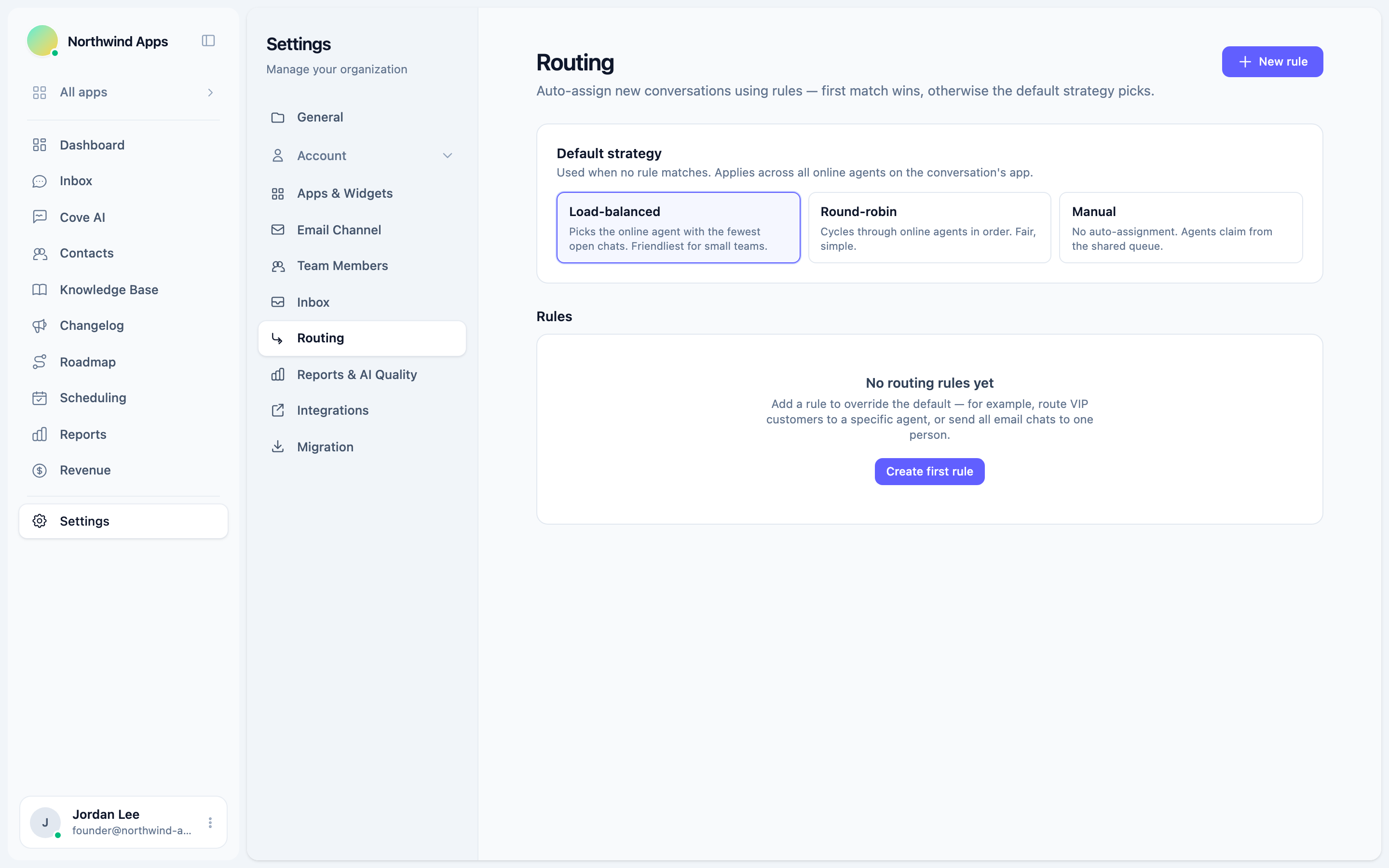
Auto-Assign Rules
Create ordered rules that automatically assign new conversations to the right agent based on app, channel, tags, keywords, or business hours.
Routing rules let Convot automatically assign a new conversation to the right agent the moment it is created. No manual triage needed.
How the rules engine works
When a new conversation is created, Convot runs the routing pipeline in the background:
- It walks your enabled rules in order (position 1 first, then 2, then 3, and so on).
- The first rule whose conditions all match wins. No further rules are evaluated.
- The matched rule’s actions are applied (assign to a user, add a tag, or skip auto-assignment entirely).
- If no rule matches, the default strategy picks the assignee.
The pipeline is idempotent: if the conversation already has an assignee when the job runs (e.g., you manually assigned it before the job fired), routing is skipped entirely.
Set up rules
- Go to Settings → Routing.
- Click New rule.
- Give it a name.
- Add one or more conditions (all must match).
- Add one or more actions.
- Save.
Conditions
Each condition is an additional AND requirement. All listed conditions must be true for the rule to fire.
| Condition type | What it checks |
|---|---|
| App | The conversation belongs to a specific app. |
| Channel | The channel is widget, email, or imported. |
| Contact tag | The contact has a specific tag. |
| Keyword | The first customer message contains a specific word or phrase (case-insensitive). |
| Business hours | Whether the conversation arrived inside or outside your configured business hours. |
A rule with no conditions matches every conversation and acts as a catch-all.
Actions
A rule can have multiple actions. All actions in a matching rule are executed.
| Action type | What it does |
|---|---|
| Assign to agent | Assigns the conversation to a specific agent (if they’re online - see Online-agent gating). |
| Add tag | Adds a conversation tag. |
| Skip auto-assignment | Leaves the conversation unassigned and stops routing. Useful for a “do not auto-route” catch-all. |
Reorder rules
On the Routing page, use the up/down arrows on each rule row to change position. Rules are evaluated in the order listed. Drag-to-reorder is not currently available - use the arrows.
Enable/disable rules
Each rule has an on/off toggle. Disabled rules are skipped during evaluation but stay in your list. Useful for temporarily suspending a rule without deleting it.
Example: Route by app
Name: Widget conversations to support team
Condition: App = [Your App Name]
Action: Assign to agent = Alex
Example: VIP routing
Name: VIP customer - senior agent
Condition: Contact tag = vip
Action: Assign to agent = Senior Support Agent
Example: Email to a dedicated inbox agent
Name: Email channel
Condition: Channel = Email
Action: Assign to agent = Email Agent
         Add tag = email
Was this article helpful?
Thanks for your feedback!