
 Knowledge Base
Creating an Article
Create a new help article from the Knowledge Base page, write it in the markdown editor, set a title and summary, and publish it when ready.
Help articles are the foundation of your knowledge base and also the primary source your AI agent draws from. A well-written article improves both your customers’ self-serve experience and the quality of Cove AI’s answers on that topic.
Creating a new article
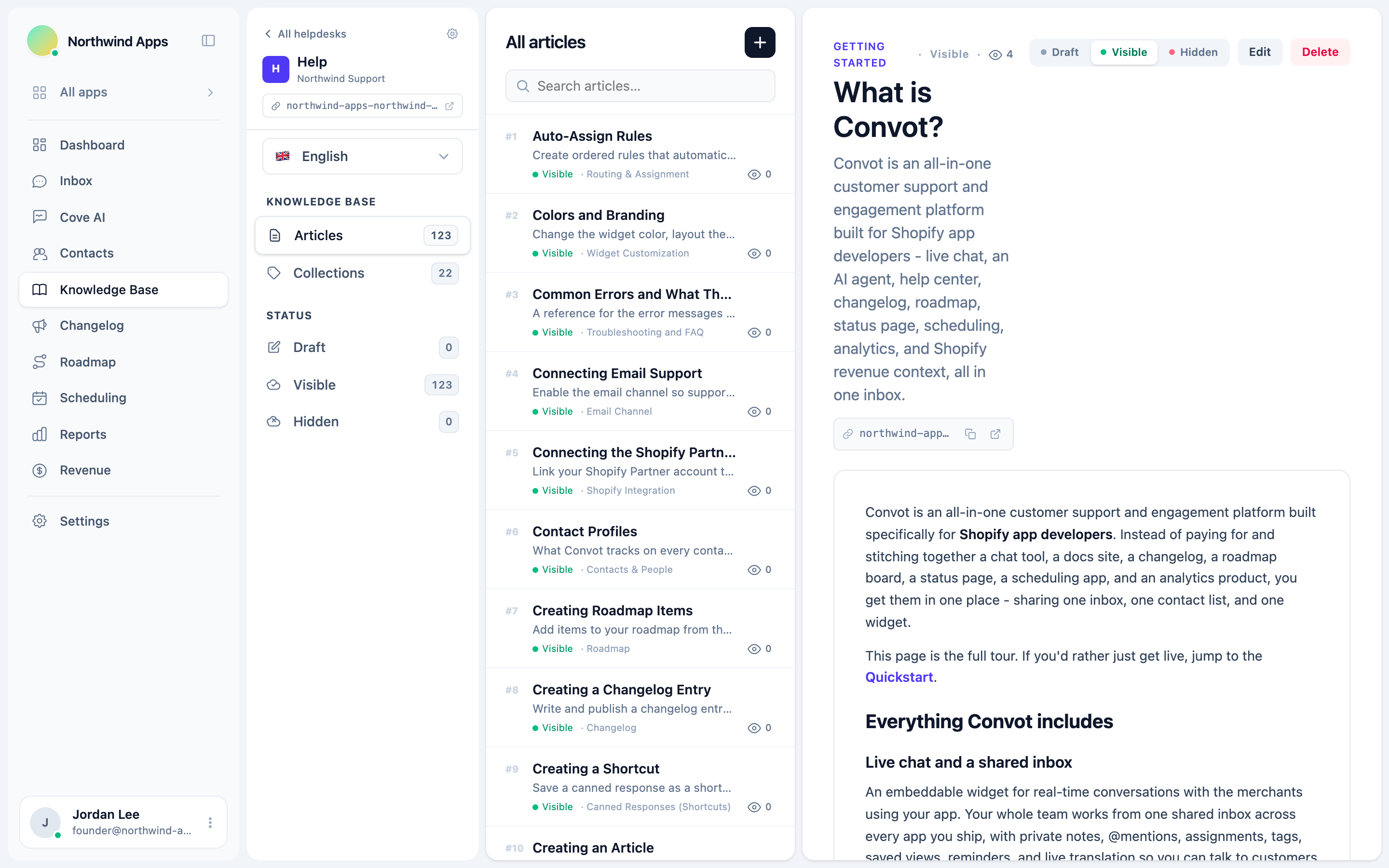
- Go to Knowledge Base in the left nav.
- Select your app and helpdesk if you have more than one.
- Click + New article (or the equivalent button in the article list).
- Write your content in the markdown editor.
- Set the title, summary, status, and optionally a collection in the right sidebar.
- Click Save or Publish when ready.
Required fields
Title: shown in search results, the article list, and the browser tab. Keep it specific - “How to add a team member” is better than “Team settings.”
Content: the article body (see The markdown editor for formatting options).
Status: controls visibility. Set to Visible to publish publicly, Draft while writing, or Hidden to keep it internal. See Publishing and unpublishing.
Optional fields
Summary: a one-sentence description shown in article lists and used as the default SEO description. Worth filling in.
Collection: organizes the article under a category in your help center. Uncategorized articles appear separately. See Organizing with collections.
Position: controls the order articles appear within a collection. Lower numbers appear first.
Meta title and meta description: override the defaults for SEO. See SEO for help articles.
Editing an existing article
Click any article in the list to open it. Your changes auto-save, or you can click Save explicitly. Status changes (draft to visible, visible to hidden) take effect immediately.
The link between articles and the AI agent
When you publish or update an article, Convot automatically re-embeds it in the background if the AI agent is enabled for that app. This means improving an article improves the bot’s answers for the same topic without any extra steps.
See Training your bot for the full picture.
Was this article helpful?
Thanks for your feedback!