 Knowledge Base
AI Suggested Articles
Cove automatically surfaces knowledge base gaps by analysing conversations it couldn't answer and recurring customer questions — so you always know what to write next.
Every week Cove analyses the conversations it struggled with and surfaces the topics your customers keep asking about that aren’t covered in your knowledge base yet. Instead of guessing what to write next, you get a prioritised list with the context to act on it immediately.
How it works
Cove looks at two signal sources from the past 7 days:
- Conversations where Cove abstained — questions it couldn’t find an answer to in your articles
- Conversations marked unhelpful — answers that didn’t satisfy the customer
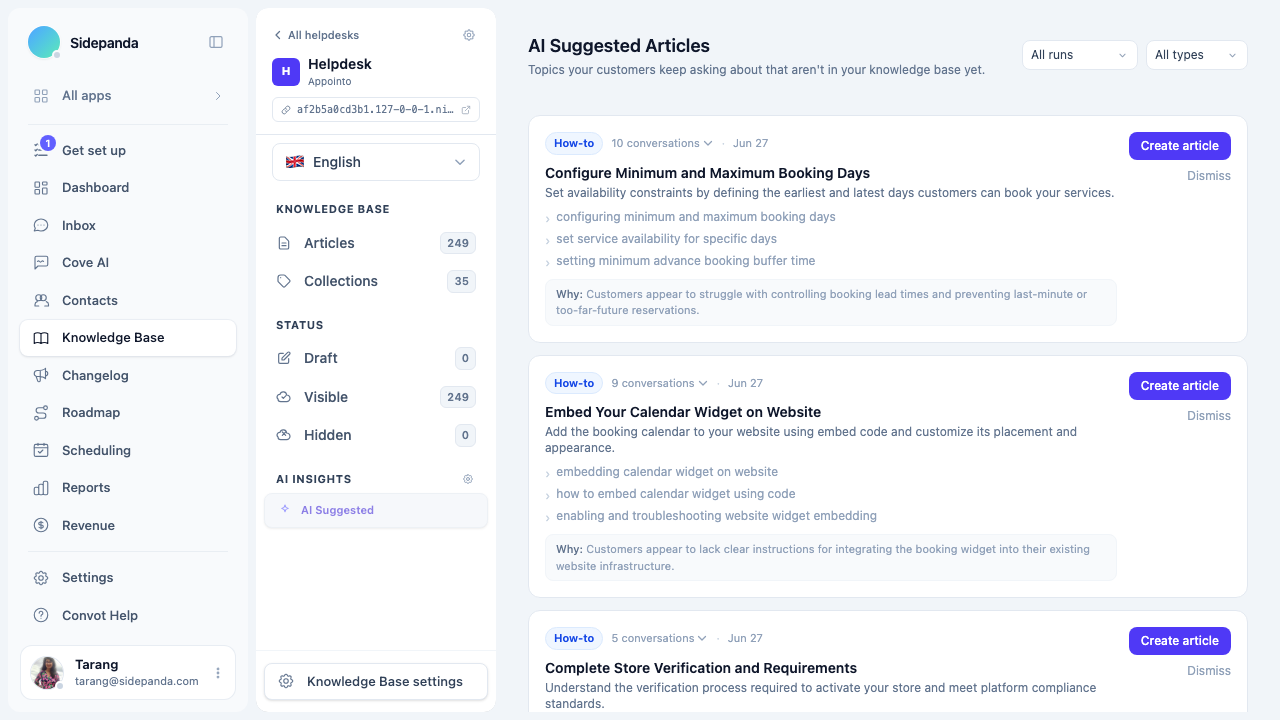
It clusters similar questions together, filters out topics already covered by your KB, and presents the recurring gaps as article suggestions. Each suggestion includes an AI-generated title, a one-sentence description, and a plain-language explanation of the customer pain point behind it.
Enabling AI Suggested Articles
- Go to Knowledge Base and select your app and helpdesk.
- Click the gear icon next to AI Insights in the left sidebar.
- Toggle Enable AI Articles on.
Suggestions are generated weekly. The first digest will appear after the next scheduled run.
Browsing suggestions
Click AI Suggested in the left sidebar under AI Insights to open the suggestions view.
Each card shows:
- Type badge — How-to, Education, No answer, or Weak answer
- Conversation count — how many conversations contributed to this cluster
- Title and description — AI-generated, ready to use as your article starting point
- Sample questions — real questions customers asked, for context
- Why — a plain-language explanation of the customer pain point
Filtering
Use the All runs dropdown to view suggestions from a specific weekly digest. Use All types to filter by signal type (how-to gaps, education gaps, unanswered questions, or weak answers).
Seeing the source conversations
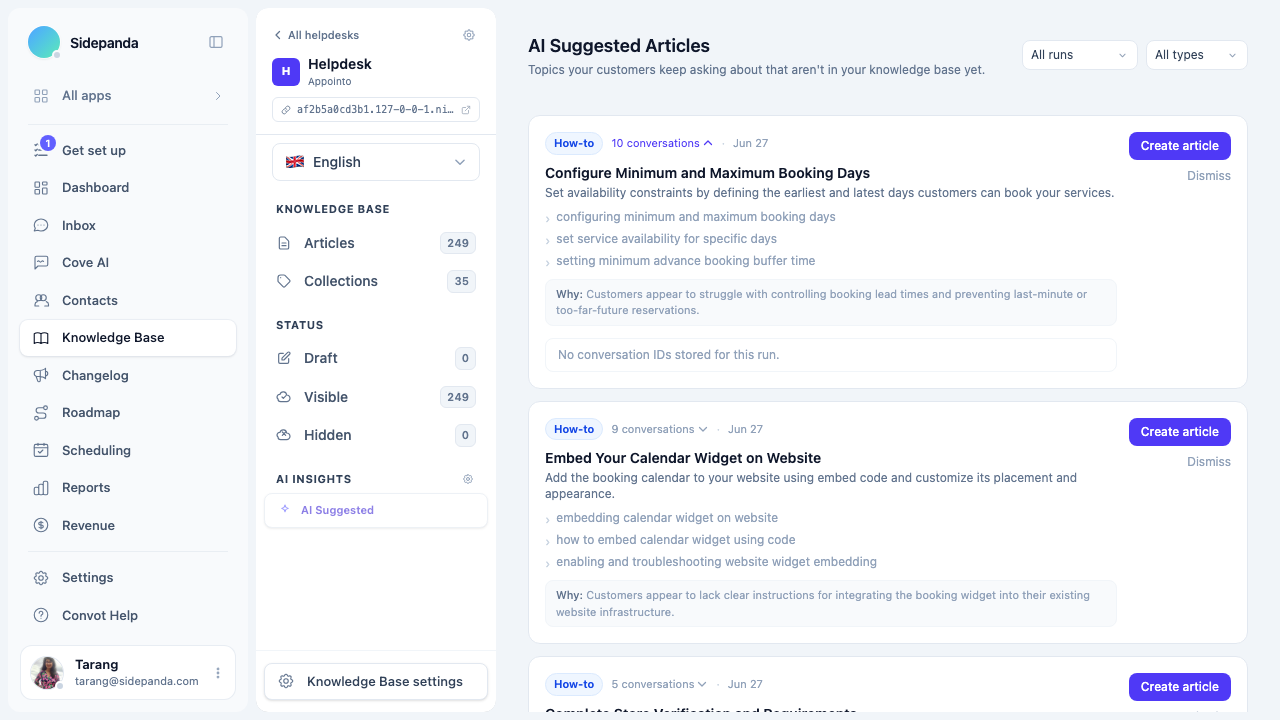
Click the conversation count on any card to expand the list of conversations that contributed to that suggestion. Each row shows the contact name, the opening message, and the date. Click any row to open the full conversation.
Creating an article from a suggestion
Click Create article on any card. The article editor opens with the title pre-filled. Add your content, review the summary, and publish when ready.
Once you publish an article covering that topic, Cove will pick it up on the next embedding run and stop surfacing it as a gap.
Dismissing suggestions
If a suggestion isn’t relevant, click Dismiss. You’ll be asked how to handle it:
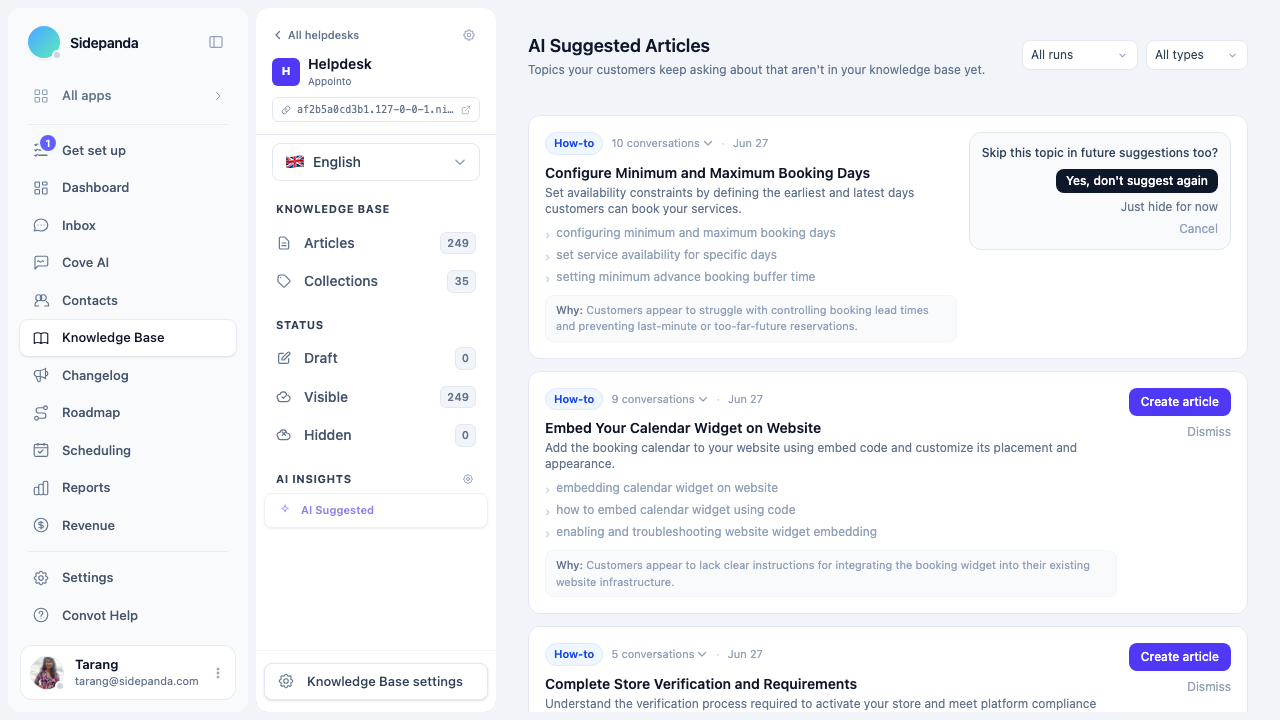
- Yes, don’t suggest again — permanently removes this topic from all future weekly digests. Cove won’t surface it again even if customers keep asking.
- Just hide for now — hides it from the current view for this session. It may reappear in the next weekly digest if customers ask about it again.
To restore a dismissed suggestion, enable Show dismissed in the filter area and click Restore.
Weekly email digest
Admins receive a weekly email summarising the latest suggestions for each app. Each topic in the email includes the same title, description, and insight — and links directly to the article editor with the title pre-filled.
The email is sent automatically after each weekly run. There is no separate opt-in required.
Was this article helpful?
Thanks for your feedback!