
 Scheduling
Reschedule and Cancel Links
Every booking includes a unique manage link that lets customers reschedule or cancel without contacting you - and your team can do the same from the Bookings tab.
Every booking confirmation includes a unique link that lets the customer manage their booking - reschedule to a different time or cancel entirely. No login required.
Customer self-service
When a booking is confirmed, the customer receives a confirmation email with:
- Meeting details (type, date, time, location).
- A Reschedule link.
- A Cancel link.
Both links use a secure, unguessable token tied to the booking. They land on a page where the customer can pick a new slot (reschedule) or confirm cancellation.
Reminder emails (if enabled) also include the same reschedule and cancel links, so customers have a second chance to adjust before the meeting.
There is no expiry on the manage link - customers can reschedule or cancel right up until the meeting.
Rescheduling a booking
When a customer clicks the reschedule link:
- They see the availability calendar for the same meeting type.
- They pick a new date and time.
- They confirm. The booking is updated and both the customer and your team receive a new confirmation.
In the admin, rescheduled bookings show status Rescheduled in the Bookings tab.
Cancelling a booking
When a customer cancels:
- They confirm the cancellation on the manage page.
- The booking status changes to Cancelled.
- Both parties receive a cancellation notification.
Cancelled bookings remain in your Bookings list for reference. They don’t count as upcoming.
Managing bookings from the admin
Your team can also reschedule or cancel on behalf of a customer:
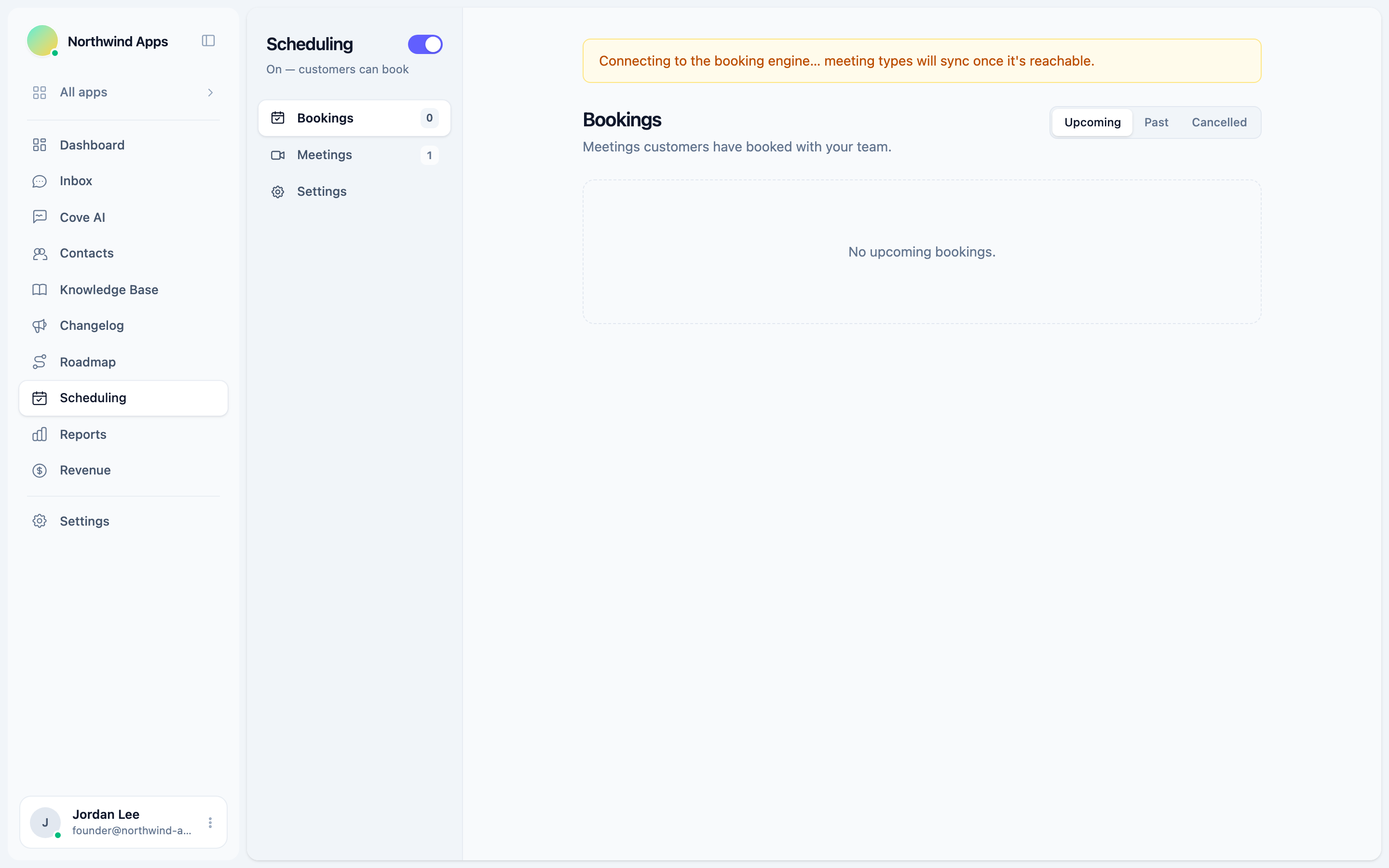
- Go to Scheduling → Bookings tab.
- Find the booking in the list (filter by upcoming, past, or cancelled).
- Click the booking row to open its details.
- Use the Reschedule or Cancel button.
You can also resend the confirmation email from the booking detail if the customer lost it.
Booking statuses
| Status | Meaning |
|---|---|
| Confirmed | Active booking. |
| Rescheduled | Customer (or admin) picked a new time. |
| Cancelled | Booking was cancelled. |
Next steps
Was this article helpful?
Thanks for your feedback!