
 Scheduling
Setting Availability
Configure your team's bookable hours, timezone, and date overrides so customers only book when you are available.
Availability controls when customers can book time with your team. Set this up before sharing your booking page.
Booking hours
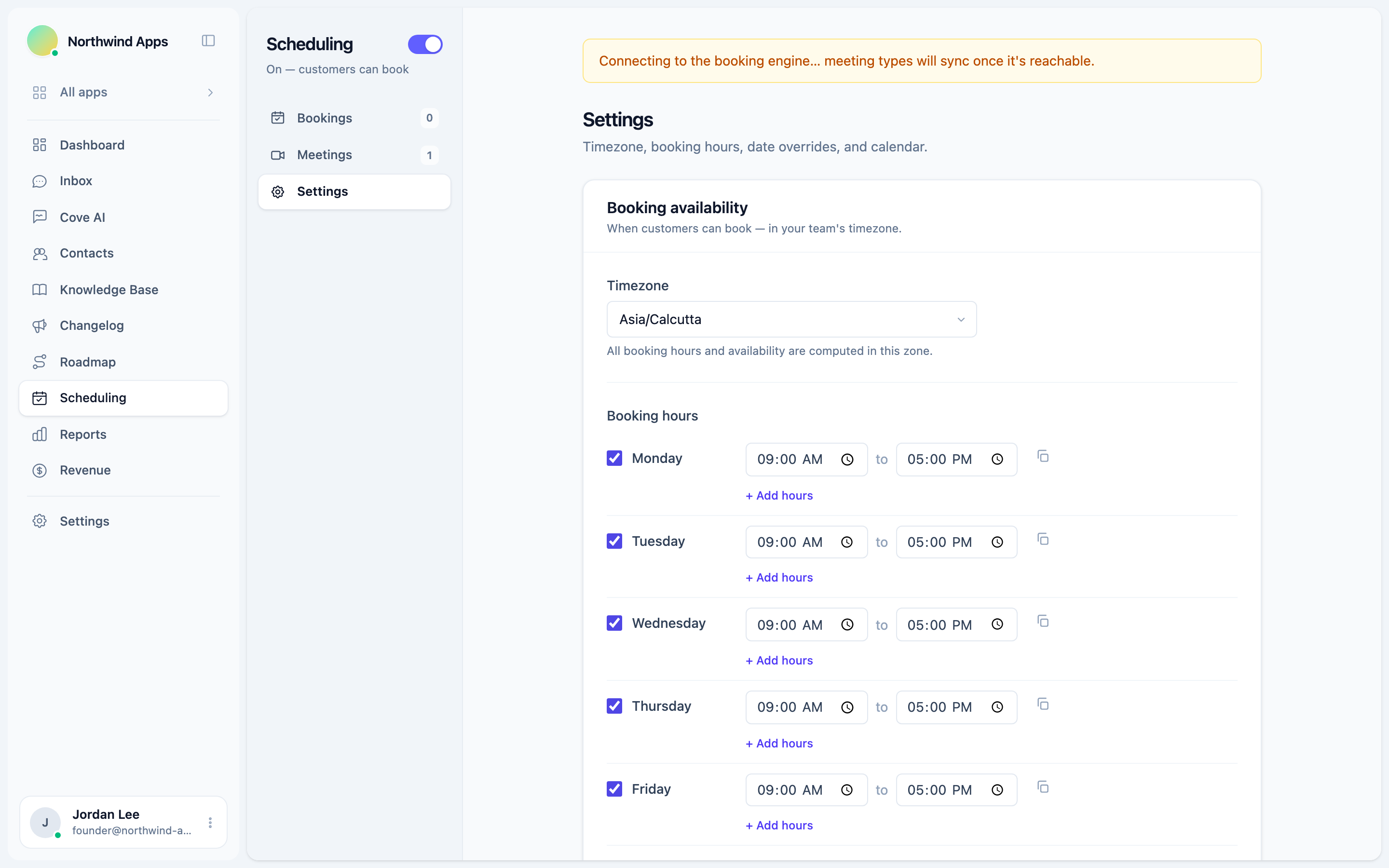
Go to Scheduling → Settings tab → Booking availability.
- Timezone - pick the timezone your hours are in. All slots are computed in this zone. Choose the timezone where your support team is based.
- Booking hours - for each day of the week, toggle it on and set one or more time windows. For example: Monday through Friday, 9:00 AM to 5:00 PM.
You can add multiple time slots per day (e.g. 9:00-12:00 and 13:00-17:00 for a lunch break). Use the Copy hours to other days button on any day to apply the same hours to multiple days at once.
- Date overrides - block a specific date entirely, or give it different hours. Use this for holidays, team off-days, or conference weeks.
Click Save changes when done.
Booking hours apply to your whole organization. Individual agent calendars can further reduce availability if you’re using Google Calendar - busy blocks from connected calendars are respected automatically.
How bookings are distributed
Today, scheduling uses a shared pool: your team shares one set of booking hours, any slot during open hours can be booked, and your team coordinates coverage internally. This works well for small teams where anyone can take a call.
Round-robin (rotating bookings evenly across agents) and per-agent (each agent with their own link) distribution are on the roadmap but are not yet selectable in the dashboard. If you need one of these, let us know.
How connected calendars affect availability
If you’ve connected your Google Calendar (see Google Meet and calendar integration), Convot checks your calendar’s busy times before showing a slot as available. If you have a meeting from 2:00-3:00 PM in your Google Calendar, that slot won’t be shown to customers.
Next steps
Was this article helpful?
Thanks for your feedback!