
 Scheduling
Creating Meeting Types
Meeting types define what customers can book - the name, duration, location, buffer time, advance notice, custom fields, and which apps it appears for.
A meeting type is a bookable event your customers can pick from - for example, a “30-minute onboarding call” or “60-minute demo”. You can have as many as you need.
Creating a meeting type
- Go to Scheduling → Meeting types tab.
- Click New meeting type.
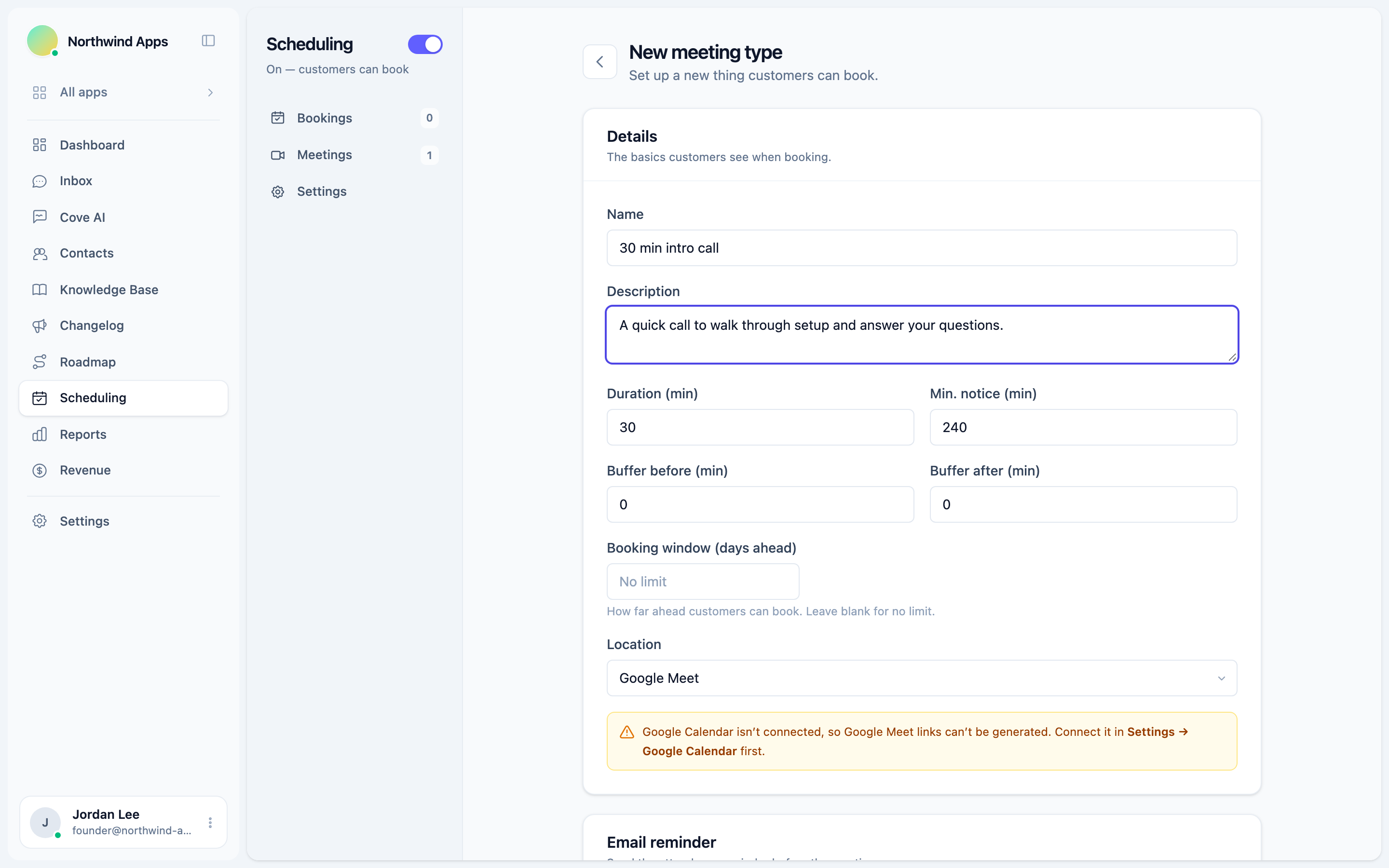
- Fill in the details:
Name and description
- Name - what customers see when booking (e.g. “30-min Support Call”). Keep it clear and action-oriented.
- Description - optional extra context shown on the booking form (e.g. “A focused call to help you get set up”).
Duration and buffers
- Duration - the length of the meeting in minutes (e.g. 30, 60).
- Buffer before - minutes to block before the meeting starts. Useful if you need prep time.
- Buffer after - minutes to block after the meeting ends. Useful for note-taking or back-to-back prevention.
Advance notice
- Min notice - the minimum number of minutes in advance a customer must book. For example, setting this to 60 means customers can’t book something starting in the next hour.
Location
Pick a location type (see Google Meet / Zoom / phone links for details):
- None - no location. Use this if the meeting is handled via the chat itself.
- Google Meet - Convot generates a Meet link automatically when the booking is confirmed (requires a connected Google Calendar).
Booking window (days ahead)
The maximum number of days in advance a customer can book. Leave blank for no limit. (Labeled “Booking window (days ahead)” on the meeting type form.)
Custom fields
You can add fields to the booking form to collect information before the call - for example, “What version of the app are you on?” or “Describe your issue”.
Each field has:
- A label (the question or field name).
- A type: text (single line), textarea (multi-line), or select (dropdown with options you define).
- An optional required flag.
App visibility
By default, a meeting type is available across all your apps. If you want it to appear only for specific apps, assign it to those apps in the Apps picker. This is useful when you have multiple products and want different booking options per product.
- Click Save.
Editing and reordering
Click any meeting type row to open its editor. Drag rows to reorder them - the order here matches what customers see on the public booking page.
Deactivating a meeting type
Toggle the Active switch off to hide a meeting type from customers without deleting it. Deactivated types don’t appear on the public booking page or in the widget.
Next steps
Was this article helpful?
Thanks for your feedback!