
 Scheduling
Meeting Recordings and Transcripts
Turn on recording and a notetaker joins your video meetings to capture a transcript and an AI call-quality score - all viewable under the Recordings tab.
When recording is on, a notetaker joins your video meetings, captures a transcript, and runs an AI call-quality review. You’ll find every recording, transcript, and score under Scheduling → Recordings.
Recordings are transcript-only - Convot stores the text of the conversation, not an audio or video file.
Turning recording on
- Go to Scheduling → Settings.
- Find the Call recording card.
- Toggle Record meetings on.
This is an organization-wide setting. Once it’s on:
- Every booked Google Meet / Zoom meeting is recorded automatically.
- Instant Meet links sent from a chat are recorded too (see Sending an instant meeting link in a chat).
Recording applies to video meetings with a join link. A connected Google Calendar is what generates those Meet links - see Google Meet, Zoom, and Phone Links.
The notetaker joins the call as a visible participant named after your organization (for example, “Acme Notetaker”). Let your customers know calls may be recorded, and follow the consent laws that apply where you and your customers are located.
Finding your recordings
Open Scheduling → Recordings. You’ll see a list of recorded meetings with the date, the rep who hosted, status, duration, and the call-quality score.
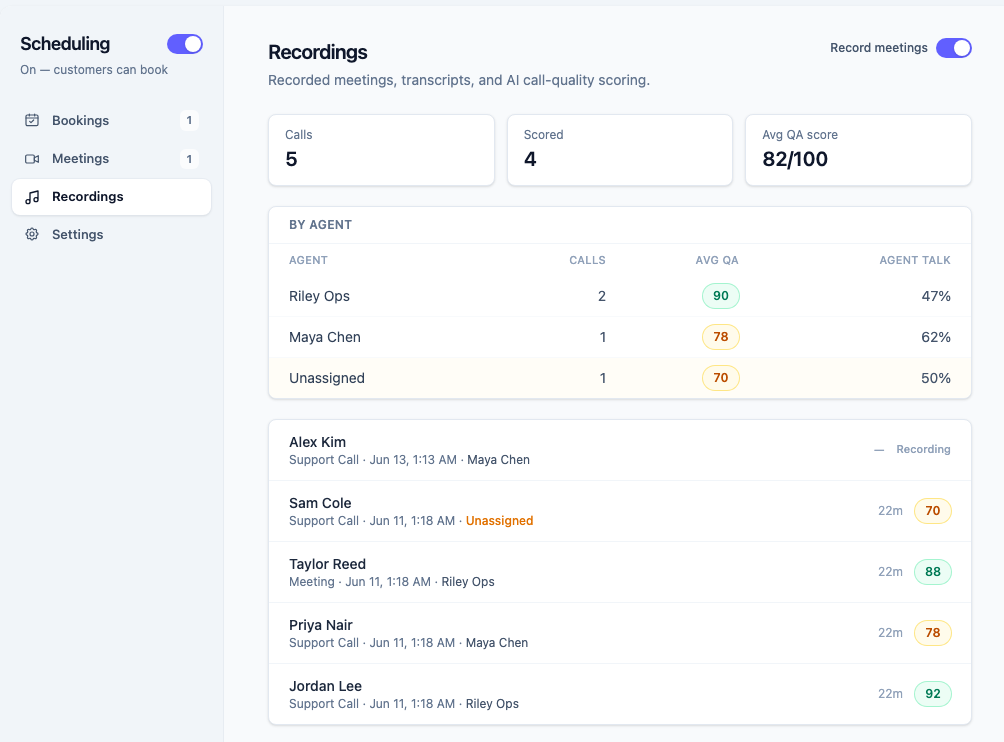
Recordings are available to admins and owners only - the same access level as Reports. Agents don’t see them, not even their own calls.
What’s in a recording
Click any recording to open it. Depending on what the call contained, you’ll see:
- Call-quality score out of 100.
- Summary of the conversation.
- Coaching notes - what went well and what to improve.
- Action items pulled from the call.
- Risk flags - moments worth a second look.
- Sentiment and agent talk ratio (how much the rep spoke vs. the customer).
- The full transcript.
Actions on a recording
- Open conversation - jump to the chat this meeting came from.
- Create follow-ups - turn the action items into reminders on the linked conversation.
- Re-score - re-run the AI review on the existing transcript.
- Re-fetch transcript - pull the transcript again (useful if a call is still processing).
- Download transcript - save the transcript as a file.
- Delete - remove the recording.
Who handled the call (attribution)
Each recording is credited to a rep so it rolls up into your call-quality reporting. Convot resolves this automatically (by the joining account or a rep introducing themselves on the call); when it can’t tell, the recording shows as Unassigned. You can set or change the rep from the Rep dropdown at the top of the recording.
For instant Meet links, the agent who sent the link is credited automatically.
Call-quality reporting
The Recordings tab shows an average QA score and a per-rep breakdown (average score and talk ratio). Call-quality scores also appear per agent in Reports → Agents, so you can track coaching trends over time.
Recording statuses
| Status | Meaning |
|---|---|
| Scheduled | The notetaker is set to join. |
| Recording | The call is in progress. |
| Processing | The call ended; the transcript and score are being prepared. |
| Done | Transcript and score are ready. |
| No show | Your team was on the call but the customer never joined, so nothing was captured. Convot automatically emails the customer a reschedule link (see below). |
| Agent didn’t join | No one admitted the notetaker from the waiting room, so the call never started. This usually means the host (your team) didn’t join. |
| Failed | The notetaker couldn’t join or record. |
When a customer no-shows
If your team joins a booked call but the customer never shows up, Convot emails the customer for you. The email lets them know your team was there and gives them a one-click link to rebook the meeting (or cancel it). It sends once per missed meeting, so there’s no risk of repeat nudges, and it never sends when the missed call was your team’s no-show.
Turning recording off
Toggle Record meetings off in Scheduling → Settings. New meetings won’t be recorded; existing recordings are kept.
Next steps
Was this article helpful?
Thanks for your feedback!