
 Scheduling
Sending an Instant Meeting Link in a Chat
Drop a ready-to-join Google Meet link into a conversation in one click - for "let's hop on a call right now" moments, with no booking or time slot needed.
Sometimes a conversation is easier to finish on a quick call. Instead of sending a booking card and waiting for the customer to pick a time, you can send an instant meeting link - a live Google Meet link that you both can join right away.
Sending an instant link
- Open a conversation in your inbox.
- In the message composer, click the 📅 Book button.
- Choose Send instant Meet link.
- A Google Meet link is posted into the conversation as a message. Click it (or have the customer click it) to join the call.
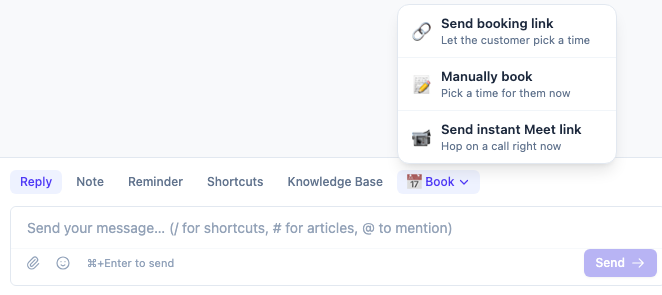
The Send instant Meet link option only appears when a Google Calendar is connected, because the link is created on your calendar’s account. If you don’t see it, connect Google Calendar first - see Google Meet, Zoom, and Phone Links.
How it’s different from a booking card
| Booking card | Instant meeting link | |
|---|---|---|
| When to use | The customer picks a time later | Jump on a call now |
| Time slot | Customer chooses from your availability | None - it’s live |
| What’s sent | An interactive card | A Meet link as a message |
A booking card schedules a meeting for the future; an instant link is for talking right now.
Recording an instant call
If your organization has meeting recording turned on, instant calls are recorded, transcribed, and scored for quality just like booked meetings. A notetaker joins the call automatically, and once the call ends the recording appears in Scheduling → Recordings, linked to the conversation. See Meeting recordings and transcripts for the full picture.
Recording only happens when recording is enabled for your organization (Scheduling → Settings → Record meetings). With it off, instant links are sent without a notetaker.
The agent who sent the link is credited as the host on the recording, so it shows up under the right person in your call quality reports.
Notes
- The link is created on your connected Google Calendar’s account, so a short calendar event is added there for the call.
- Customers do not need a Google account to join.
- If no Google Calendar is connected, the option is hidden and no link can be created.
Next steps
Was this article helpful?
Thanks for your feedback!