
 AI Agent
Connected Data - answer account-specific questions
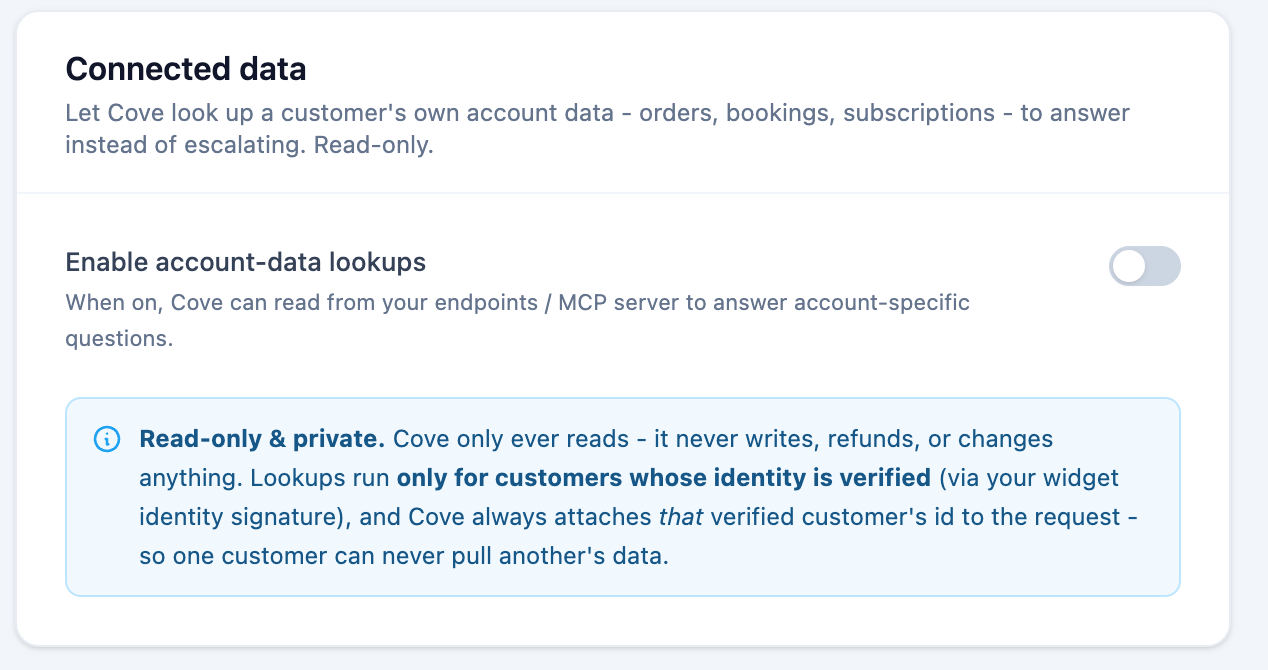
Plug your own account data into Cove with a REST endpoint or an MCP server, so the AI agent can look up a verified customer's orders, bookings, plan, or settings and answer instead of escalating.
Out of the box, Cove answers from your knowledge base and Q&A snippets. Connected Data lets it go one step further: look up this specific customer’s account data — their order, their booking, their plan, their settings — and answer questions that would otherwise have to wait for a human.
For example, instead of escalating “did my latest booking get a confirmation email?”, Cove can read the booking and tell the customer directly.
What you can connect
There are two ways to give Cove a read-only window into your data:
-
A REST endpoint — one URL that returns data for a lookup (e.g.
GET /orders/{order_number}). One endpoint = one tool. - An MCP server — your own Model Context Protocol server that exposes several read tools at once (look up an order, check setup status, get the plan, and so on). One server = many tools.
If you only need a single lookup, a REST endpoint is the quickest path. If you want Cove to reason across several kinds of account data, an MCP server is the better fit.
How Cove keeps it safe
Connected Data is built to be safe to turn on, because it only ever reads, and only for customers you’ve already verified.
-
Read-only, always. REST tools are
GET-only. An MCP server only exposes a tool to Cove if that tool is marked read-only (or you explicitly allow it). Write actions — refunds, cancellations, edits — can never be enabled, even by accident. - Verified customers only. Cove only uses your tools for a customer whose identity has been cryptographically verified. Anonymous or unverified visitors get no access to account data at all.
- The customer can’t look up someone else. Convot injects the verified customer’s own key (their email, Shopify domain, or external ID) into every request on the server side — after the AI’s arguments. So even if a customer tries to make Cove fetch a different account, the lookup stays scoped to them.
- Signed requests (HMAC). Each call is signed so your server can confirm it genuinely came from Convot and wasn’t tampered with. The signing secret is never sent over the wire.
- No internal addresses. Tools can only call public HTTPS endpoints. Internal, localhost, and metadata addresses are blocked.
Setting it up
- Open AI Agent → Connected data and switch on Enable account-data lookups.
- Click + MCP server (or + REST endpoint).
- Enter your server’s URL (must be public HTTPS).
- Choose how Cove identifies the customer under Send as — the key your endpoint expects (e.g. their email, Shopify domain, or external ID). Convot fills this in for you on every request.
- Pick an authentication method. Signed request (HMAC) is recommended and on by default for MCP servers (see below).
- Click Test connection.
Verifying signed requests
When you choose Signed request (HMAC), Convot generates a signing secret for you and shows it right there in the editor.
-
Copy the secret into your server (store it as an environment variable, e.g.
MCP_SIGNING_SECRET). - Copy the verification snippet — we provide ready-to-paste code for Ruby, Node, and Python — into your server, and call it before handling each request.
The snippet checks the X-Convot-Signature header and a 5-minute timestamp window, and rejects anything that doesn’t match. The secret only lives on your side and in Convot — it’s never transmitted. If you ever need to rotate it, click Regenerate, update your server, and save.
Test connection
Test connection runs a real, signed handshake against your server and reports exactly what happened:
- ✅ Connected — and it lists every read-only tool it found. Convot saves each tool’s name and description so Cove understands what it can do.
- ❌ HTTP 401 — your server rejected the signature. Usually the secret in Convot doesn’t match the one on your server. Copy the secret again and restart your server.
- ❌ No tools exposed — your server connected, but no tool is marked read-only. Mark the tools you want Cove to use with
readOnlyHint: true.
Turn individual tools on or off
After a successful test, every read-only tool your server exposes appears as a toggle. Enable the ones you want Cove to use and leave the rest off. Write tools are shown greyed out and can’t be enabled. Click Save when you’re done.
How Cove uses your tools
When a verified customer asks an account-specific question, Cove decides whether one of your tools can answer it. If so, it calls the tool, reads the result, and writes its reply from that data. Every answer still passes through Cove’s grounding check, so it won’t invent details the tool didn’t return.
If a tool returns an error or no matching data, Cove doesn’t guess — it hands the conversation to a human, the same as it would for anything else outside its knowledge.
This works in both Suggest and Auto modes. The gate is verification, not the mode — so even in Suggest mode, drafts your agents review can already include real account data.
Designing a good data source
Cove reads your tool’s output the way a sharp new teammate would — so the clearer your data, the better its answers. A few guidelines that make a big difference:
-
Return a conclusion, not a raw database dump. If a tool checks setup, lead with a clear verdict (e.g.
status: "ready"or ablocking_issueslist) rather than a pile of raw fields. Cove — like a person — can misread an ambiguous field. - Name things the way your customer thinks. Use the labels your customers see in your product, not internal column names.
- Document anything ambiguous. If an empty value could be misread as “broken,” add a short note in the field’s description.
-
Keep each tool focused and well-named. Several clearly-named tools (
get_order,get_booking,get_plan) beat one catch-all — Cove picks the right tool from its name and description.
Frequently asked
Will Cove ever change or delete data? No. Connected Data is read-only by construction, and write tools can’t be enabled.
What happens for visitors who aren’t verified? Cove simply doesn’t use your tools for them — it falls back to your knowledge base and escalates when needed.
Does this need a code deploy on my side? You’ll need a running endpoint or MCP server that returns your data and verifies the signature. Once it’s live, connecting it in Convot takes a few minutes and no Convot-side changes.
Was this article helpful?
Thanks for your feedback!