
 AI Agent
Bot persona - name, avatar, and context
Set the bot's display name, upload an avatar, write a business context that grounds its answers, and add instruction rules it follows in every reply.
The Persona tab controls how Cove AI presents itself to customers and what background knowledge it carries into every conversation. A well-configured persona produces noticeably better answers because the AI understands your product and customers before it reads a single knowledge source.
Open Cove AI, select your app, then open Persona in the sidebar.
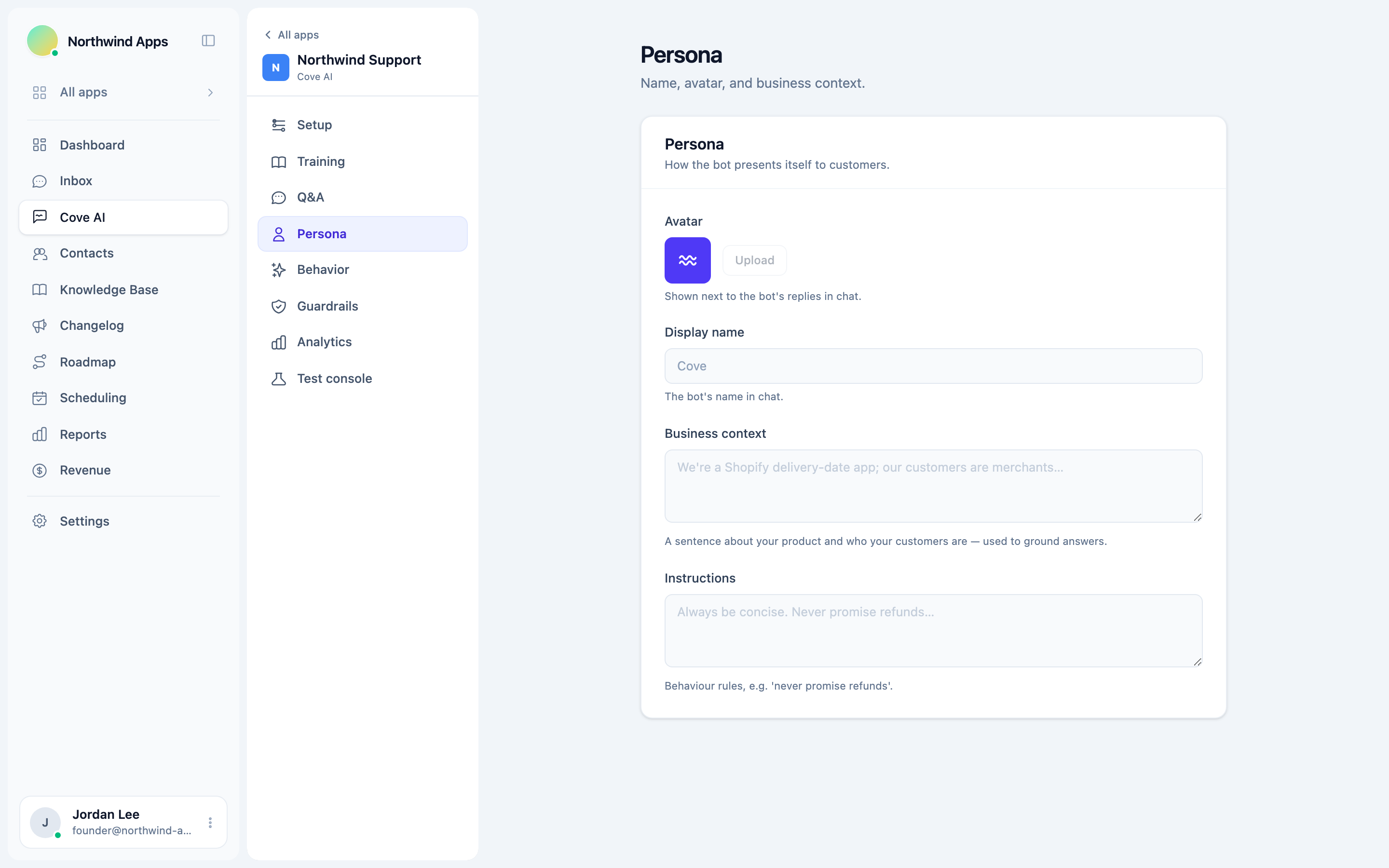
Avatar
The avatar is the image displayed next to the bot’s replies in the chat widget. By default it shows a Cove glyph on an indigo background.
To upload your own image:
- Click Upload in the Avatar field.
- Pick any image file (PNG, JPG, GIF). Square images work best - the widget clips it to a rounded square.
- The preview updates immediately.
Click Remove to go back to the default Cove glyph.
Use your product’s icon or logo as the bot’s avatar so it looks like a natural extension of your app. This reduces customer confusion and signals that the bot is part of your product, not a generic third-party widget.
Display name
The display name is the bot’s name in chat - shown above its replies the same way your agents’ names are shown above theirs.
The default is Cove. Change it to anything you like: your product’s name, a branded assistant name, or something playful.
Common choices from Convot customers:
- The product’s own name (“DeliveryBot for Routemaster”)
- A branded persona name (“Max by PickupPal”)
- A generic friendly name (“Support”, “Helper”)
The name is not exposed anywhere except the chat widget, so there is no risk of it affecting your search ranking or documentation.
Business context
This is the most important field in the Persona tab.
The business context is a short description of your product and who your customers are. It is injected into the AI model’s system prompt for every answer, before it reads any knowledge sources.
Why it matters: Without context, the AI is a general assistant that happens to have your help articles. With context, it is an assistant that already knows it is helping Shopify merchants using your delivery-date scheduling app, and that when a customer says “the cut-off isn’t working” they probably mean the order cutoff setting, not a billing issue.
What to include
The most effective business contexts have three parts:
- What your product does, in one sentence.
- Who your customers are (Shopify merchants, SaaS teams, developers, etc.).
- Any domain shorthand or terminology customers use that an AI might misread.
Example for a delivery-date app:
We build a Shopify app that lets merchants show delivery dates on product pages and restrict orders after a daily cutoff time. Our customers are Shopify merchants - store owners and their staff. Common terms: “cutoff” means the order cutoff time setting, “delivery calendar” is the date picker widget on the product page, “blackout dates” are days delivery is blocked.
Example for a multi-location inventory app:
We make a Shopify app that syncs inventory across multiple warehouse locations and sets per-location stock limits. Our customers are mid-size Shopify merchants with 2-10 fulfillment locations. “Location” always refers to a Shopify fulfillment location, not a retail store. “Sync” refers to the background job that reconciles inventory counts.
What not to do:
- Do not write a marketing pitch. The bot does not use this to sell - it uses it to understand.
- Do not repeat information already in your help articles. The context is background, not content.
- Do not be vague (“we make a Shopify app for merchants”). The more specific you are, the better the bot reads ambiguous questions.
The field accepts plain text. You do not need markdown formatting here.
Instructions
The instructions field lets you add behavior rules the bot follows in every reply, on top of its built-in guidelines.
Think of it as a short policy document the bot reads before it replies to anything.
When to use instructions
- Enforce specific language around policies: “Never promise a refund. Instead, say we review refund requests case by case and ask the customer to email support.”
- Block certain topics: Instructions reinforce your scope fence (set in Guardrails), but you can also add softer guidance here for edge cases: “If a customer asks about pricing, point them to our pricing page at example.com/pricing and do not quote any specific number.”
- Set a communication style: “Always use the customer’s first name if they provided it. Keep replies to three sentences or fewer.”
- Handle known edge cases: “If a customer asks about our legacy v1 API, tell them it was deprecated in March 2024 and link them to the migration guide.”
Format
Write instructions as plain sentences or bullet points. The bot reads them as a set of rules, so clear imperative language works best.
Example:
Always be concise - reply in three sentences or fewer unless a step-by-step answer is genuinely necessary. Never quote specific prices - if pricing comes up, say “check our pricing page” and do not make up a number. If a customer is frustrated, acknowledge it first before giving any steps.
Instructions are powerful but additive - they work with your knowledge sources, not instead of them. If you want the bot to give a specific answer to a specific question, use a Q&A snippet instead. Instructions are for rules that apply across many questions.
If an instruction conflicts with a knowledge source, the instruction wins. Double-check that your instructions do not accidentally tell the bot to say things that contradict your help articles.
Saving
Changes to Persona are saved when you click Save or navigate away from the tab. The Saved badge appears briefly to confirm.
Persona changes take effect on the next conversation - they do not re-open or change in-flight conversations.
Was this article helpful?
Thanks for your feedback!