
 AI Agent
Test console
Use the test console to ask questions the way a customer would, verify the bot answers correctly, read the confidence score and sources, and debug unexpected escalations before going live.
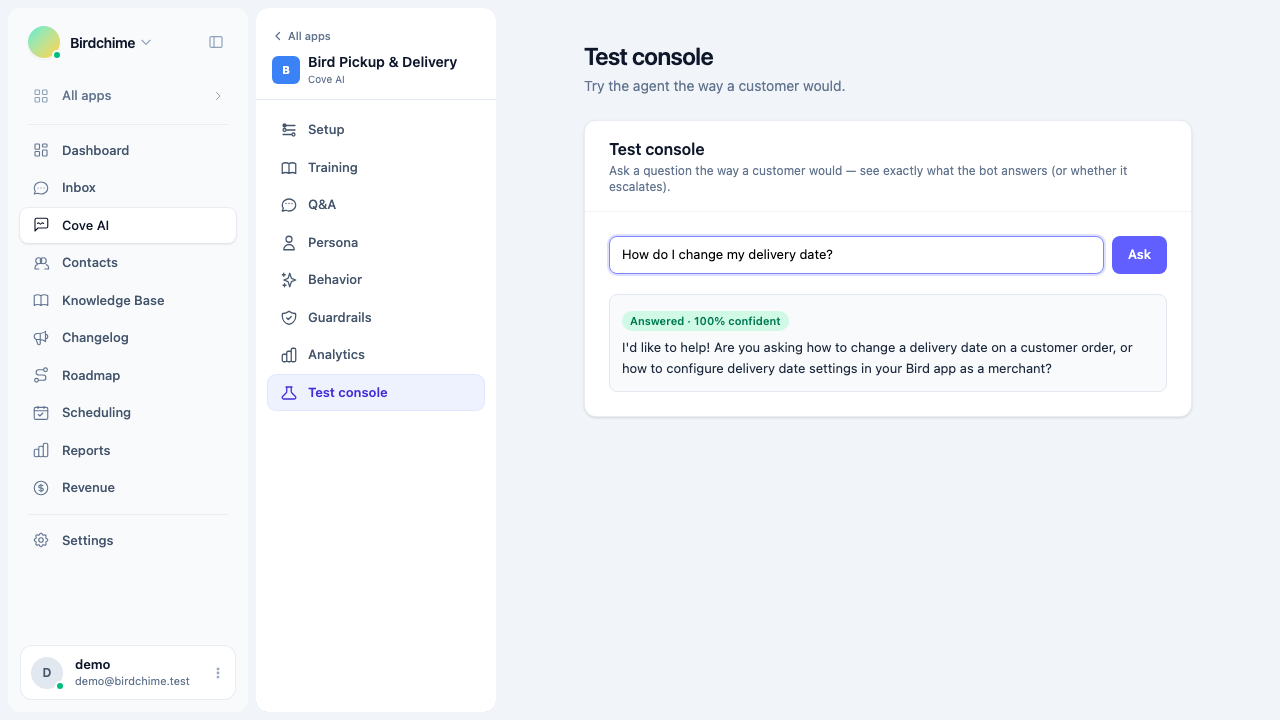
The test console lets you ask the bot questions exactly the way a customer would, and see the full decision it makes - the answer it would send, the confidence score it assigned, the sources it drew from, and whether it would escalate instead of replying.
Open Cove AI, select your app, then open Test console in the sidebar.
Locked until trained
The test console is locked until the bot has been trained at least once and has knowledge in its index.
If you see a lock message when you open the test console, it means one of these is true:
- You have not run a training job yet. Go to Training and click Train AI, then come back.
- A training job is currently in progress. The console shows a progress message; wait for it to finish.
- Your knowledge base has no articles and you have no other sources. Add knowledge first.
The console unlocks as soon as the training job completes and at least one chunk exists in the index.
You do not need to be in any particular mode (Suggest, Auto, etc.) to use the test console. It queries the same knowledge index the live bot uses, regardless of whether the agent is enabled.
Asking a question
Type a question in the input field - phrase it the way a customer would, not the way you wrote the article. Real customers write things like “my delivery date isn’t showing up” or “how do I block off Christmas?”, not “configure the blackout date settings”.
Press Enter or click Ask. The bot runs the full answer pipeline: it rewrites the query, retrieves relevant knowledge chunks, generates an answer (or decides to escalate), and returns the result.
Test console calls use the same AI model, persona, instructions, tone, and behavior settings that are configured in those tabs. What you see in the console is what the live bot would do.
Reading the result
Answered
If the bot has a confident answer, the result card shows:
- A green Answered badge with the confidence score as a percentage (for example: “Answered - 87% confident”).
- The full answer text, exactly as the bot would send it to a customer.
- A Sources line at the bottom listing the titles of the knowledge chunks it used.
The confidence score is a value between 0% and 100%. The bot answers (rather than escalating) when confidence is above the threshold you set in Guardrails - 60% by default.
A high confidence score means the bot found closely matching content and generated an answer it is sure about. A moderate score (around 60-75%) means it found relevant content but the match was not as strong.
Would escalate to a human
If the bot decides to escalate, the result card shows:
- An amber Would escalate to a human badge.
- A short reason line - what caused the escalation (“needs a human”, “out of scope”, “low confidence”, or a specific reason like “topic is in the scope fence”).
The answer field is blank or contains the warm handoff line the bot would send the customer before routing to your inbox.
Using the test console to debug escalations
The most common use of the test console is diagnosing why the bot escalates a question you expect it to answer.
The bot says “low confidence” or “out of scope”
This means the knowledge sources did not have a strong enough match. Work through these steps:
- Check whether your knowledge base actually covers the topic. If you know the answer but the article does not exist yet, add it or write a Q&A snippet.
- If the article exists, re-read it from the customer’s perspective. Does it use the same words and phrasing a customer would use? A customer who asks “can I block off holidays?” might not trigger an article titled “Configuring non-business days” - the phrasing mismatch reduces retrieval relevance.
- Add a Q&A snippet with the customer’s exact phrasing as the question and a precise answer. Snippets are always in scope and are retrieved alongside articles, so a well-written snippet can fill a retrieval gap immediately.
- If the sources line in the console is empty or shows unrelated articles, the retrieval is not finding the right content. The snippet approach above is the fastest fix.
The bot escalates because the topic is in the scope fence
If the escalation reason mentions “scope fence” or “never answer”, the topic matched one of the rules you set in Guardrails - Never answer these topics. This is the correct behavior - review your scope fence if you want to allow the bot to answer those questions.
The confidence threshold is too high
If the bot consistently escalates questions you expect it to handle, and the sources line shows it found relevant content, your confidence threshold may be set too high. Check Guardrails - Confidence threshold: “High (0.75)” is strict. Try “Medium (0.6 - recommended)” to see if that resolves the escalations. See The abstain gate for guidance on tuning the threshold.
The answer is correct but you want it phrased differently
If the bot answers but the phrasing is not quite right, do not lower the threshold - the retrieval and logic are working. Instead:
- Add a Q&A snippet with your preferred phrasing as the answer. The bot blends sources, and a precise snippet tends to dominate the phrasing for that specific question.
- Update the relevant article to include the language you want.
- Add an instruction in Persona - Instructions if the phrasing issue is broad (for example: “never start a reply with ‘Great question!’”).
Before going live
Run through at least 10-15 test questions before you enable the bot for real customers:
- The top 5 questions your team fields most often.
- 2-3 edge cases or tricky questions where the answer is nuanced.
- At least one question that should escalate (billing, account-specific requests, or a topic in your scope fence) - confirm the escalation badge appears.
- At least one off-topic message (a greeting or something unrelated to your product) - the bot should handle it gracefully without escalating.
If you are happy with the results, you are ready to go live. Switch back to Setup and confirm the mode is set the way you want.
Was this article helpful?
Thanks for your feedback!