
 AI Agent
Behavior settings
Configure how Cove AI engages - AI model choice, vision, citations, tone of voice, language, clarifying questions, and plan-aware answers using Shopify merchant data.
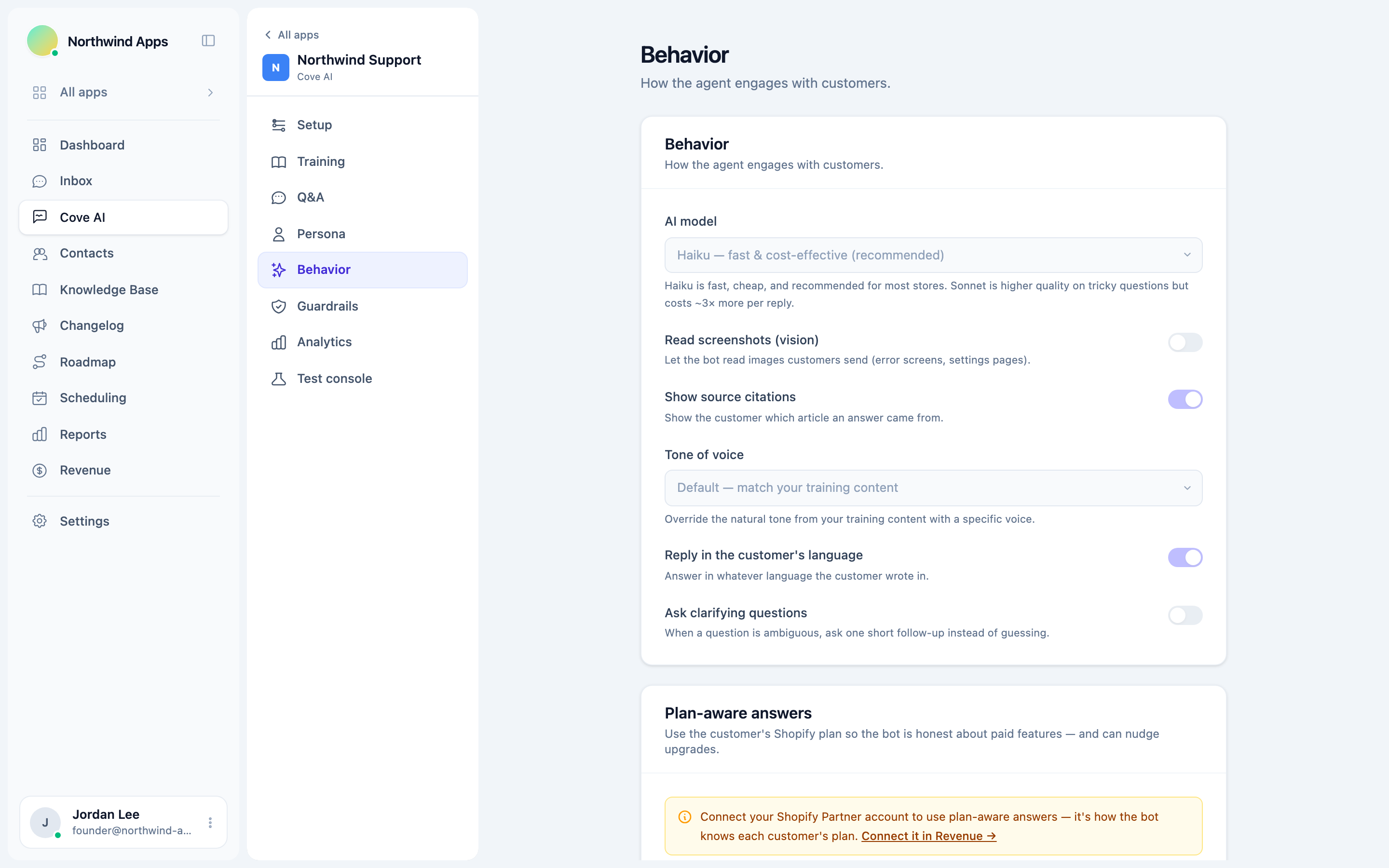
The Behavior tab controls how the agent engages with customers: which AI model it uses, how it sounds, what it can read, and how much it knows about each merchant’s Shopify subscription.
Open Cove AI, select your app, then open Behavior in the sidebar.
AI model
The AI model setting determines which underlying language model generates the bot’s answers.
| Model | Speed | Quality | Relative cost |
|---|---|---|---|
| Haiku - fast and cost-effective (recommended) | Fast | Good for the vast majority of support questions | 1x |
| Sonnet - higher quality (~3x cost) | Slightly slower | Noticeably better on complex, multi-step, or nuanced questions | ~3x |
Haiku is the right choice for most apps. Most support questions - “how do I set a cutoff time?”, “where is the widget settings page?”, “can I add multiple locations?” - are answered just as well by Haiku as by Sonnet at a third of the cost.
Switch to Sonnet only if you observe, in the test console or in AI agent analytics, that the bot regularly produces weak answers on complex questions and that better answers are the bottleneck (not missing knowledge). Switching to Sonnet does not fix a knowledge gap - it only improves reasoning quality on questions that are already supported by your knowledge sources.
Cost is tracked per reply in the AI agent analytics dashboard. See Cost controls for more detail.
Read screenshots (vision)
When Read screenshots is on, Cove AI can read images that customers attach to their messages - error screens, settings pages, order details, anything visual - and use what it sees when generating an answer.
This is off by default because it adds a small cost to every message that includes an image.
Turn it on if:
- Customers frequently send screenshots when asking for help (“here is what I see”).
- Your product involves UI-heavy workflows where “what I see on my screen” matters.
- You find that the bot escalates screenshot-heavy questions unnecessarily when the answer would be obvious from the image.
Vision replies are not cached (because the image content is different every time), so each one incurs a fresh generation cost.
Show source citations
When Show source citations is on, the bot tells the customer which article or source its answer came from. This appears at the bottom of the bot’s reply as a short “Sources:” line.
This is on by default. Citations make the bot’s answers more trustworthy - customers can see the answer came from your documentation, not from the bot’s general knowledge.
Turn it off if your customers find the citation line distracting, or if you do not want to expose the names of your internal knowledge sources.
Tone of voice
The Tone of voice setting overrides the natural voice that the bot would otherwise derive from your training content.
By default (“Default - match your training content”) the bot writes in the tone that emerges naturally from your knowledge base and Q&A snippets. If your documentation is formal, the bot sounds formal. If it is conversational, the bot is conversational.
The available presets are:
| Preset | What it sounds like |
|---|---|
| Default - match your training content | Derived from your content; no override |
| Friendly | Warm, approachable, encouraging |
| Professional | Clear, measured, authoritative |
| Concise and direct | Short sentences, no preamble, to the point |
| Warm and empathetic | Acknowledges feelings before giving steps |
| Playful | Light tone, a touch of personality |
| Formal | Polished, neutral, business-appropriate |
| Custom | Write your own description (see below) |
The tone instruction is injected into the model’s system prompt and applies to every reply, regardless of what the knowledge source sounds like. The bot keeps the tone consistent whether it is answering a simple question or giving a multi-step setup guide.
Custom tone
Selecting Custom reveals a free-text field where you can describe the voice in your own words.
Good custom tone descriptions are specific and behavioral, not abstract:
- “Casual and upbeat, use the customer’s first name if it is available, and a touch of dry humour when appropriate. Never use jargon.”
- “Sound like a knowledgeable colleague, not a support bot. Avoid phrases like ‘Great question!’ or ‘I’d be happy to help’. Get straight to the answer.”
- “Warm but efficient. Acknowledge any frustration in one sentence, then give steps. Max two sentences of preamble.”
Avoid vague descriptors like “nice” or “good” - the model needs enough specificity to apply the tone consistently.
The tone override is separate from your persona instructions. Tone describes how the bot sounds; instructions describe what rules it follows. Both are applied together.
Reply in the customer’s language
When Reply in the customer’s language is on, the bot detects the language the customer wrote in and replies in that same language, even if your knowledge sources are written in English.
This is on by default. It means a French-speaking merchant asking “comment changer la date de livraison?” gets an answer in French, not English.
The bot translates its answer on the fly - it does not require you to have translated help articles. Quality is generally strong for major European and Asian languages. For less common languages the answer may default to English.
Turn this off only if you operate in a single-language environment and want to enforce that all replies come in your language regardless of what the customer wrote.
Ask clarifying questions
When Ask clarifying questions is on, the bot asks one short follow-up question when a message is genuinely ambiguous and there is no useful answer it can give without more information.
This is off by default.
The bot is designed to strongly prefer answering over clarifying - it will give a grounded partial answer to a vague question rather than asking a follow-up in most cases. When this toggle is on, it can ask one clarifying question only when it cannot give any useful answer without a specific missing detail.
Example: “it’s not showing up” with no other context could refer to the widget, a delivery date, or a sync job. With clarifying questions on, the bot may ask “Which part of the app is not showing up?” before answering. With it off, the bot answers all common causes from the documentation instead.
Turn this on if your product is complex enough that “it is not working” genuinely means very different things, and you have seen the bot give wrong common-cause answers when it should have asked first.
Plan-aware answers
Plan-aware answers are a separate card in Behavior. They let the bot tailor its answers based on whether the customer is on a free or paid tier of your app.
Requirement: Shopify Partner connection
This feature requires your Shopify Partner account to be connected in Convot. The bot reads each merchant’s plan status via Shopify - without that connection, it has no way to know whether a given customer is on a paid plan or the free tier.
If your Partner account is not connected, the Plan-aware answers card shows a notice with a link to connect it at Revenue. See the Shopify revenue section of Convot for setup instructions.
Enable plan-aware answers
Once connected, turn on Enable plan-aware answers. The bot will now look up each merchant’s subscription status (whether they are actively paying for your app) before generating a reply about features.
This prevents the bot from telling a free-tier merchant to “just go to the Pro settings” for a feature they cannot access.
When a feature needs a higher plan
This setting controls the bot’s strategy when a customer asks about a feature their current plan does not include.
| Option | What the bot does |
|---|---|
| Neutral - just state which plan it needs | “That feature is available on the Pro plan.” - factual, no sales pressure. |
| Nudge - suggest upgrading | “That feature is on the Pro plan - upgrading would unlock it for your store.” - gentle upsell prompt. |
Choose Neutral if you want the bot to be purely informational about plan gating.
Choose Nudge if you want the bot to surface upgrade opportunities naturally when a customer asks about a feature they do not have access to. The bot will only nudge when it is directly relevant - it does not inject upgrade prompts into unrelated answers.
The bot will only cite an upgrade URL or price that appears verbatim in your knowledge sources or in the Plan details field below. It will never invent a link, a price, or upgrade steps. If you set Nudge but have not documented your pricing in your sources or the override field, the bot will say “you can upgrade from your account settings” - not make up a URL.
Plan details (optional override)
The plan details field lets you describe your plans in plain text so the bot can answer precisely when it needs to reference plan differences.
Without this field, the bot knows whether a merchant is on a paid plan (from Shopify), but it does not know what each plan is called, what it costs, or what features each tier includes - that information has to come from your knowledge sources.
Use this field when:
- Your pricing is not in your help articles (or you do not want to put it there).
- You want a single canonical description of your tiers that takes precedence over anything in the docs.
- Your plans have specific feature differences that the bot needs to get exactly right.
Example:
Free: widget shows delivery dates on product page, single calendar. Pro ($19/mo): all Free features plus round-robin team scheduling, SMS reminders, custom booking page branding. Enterprise ($49/mo): all Pro features plus priority support, API access, multi-store management. Upgrade at example.com/pricing.
The bot uses this description as ground truth, checked against the same “no invented facts” rule as any other source.
Was this article helpful?
Thanks for your feedback!