
 Installing the Widget
Verifying Your Install
Confirm the Convot widget is loading correctly and sending a test message end to end.
After adding the snippet, run through this checklist to confirm everything is working before you go live.
Step 1: See the chat bubble
- Open the page where you added the snippet.
- Look for the chat bubble in the bottom-right corner (or bottom-left if you reversed the position).
If the bubble appears, the widget loaded successfully. Continue to step 2.
If it does not appear, see My widget isn’t showing for the full troubleshooting checklist.
Step 2: Send a test message
- Click the chat bubble to open the widget.
- Type a short message and send it.
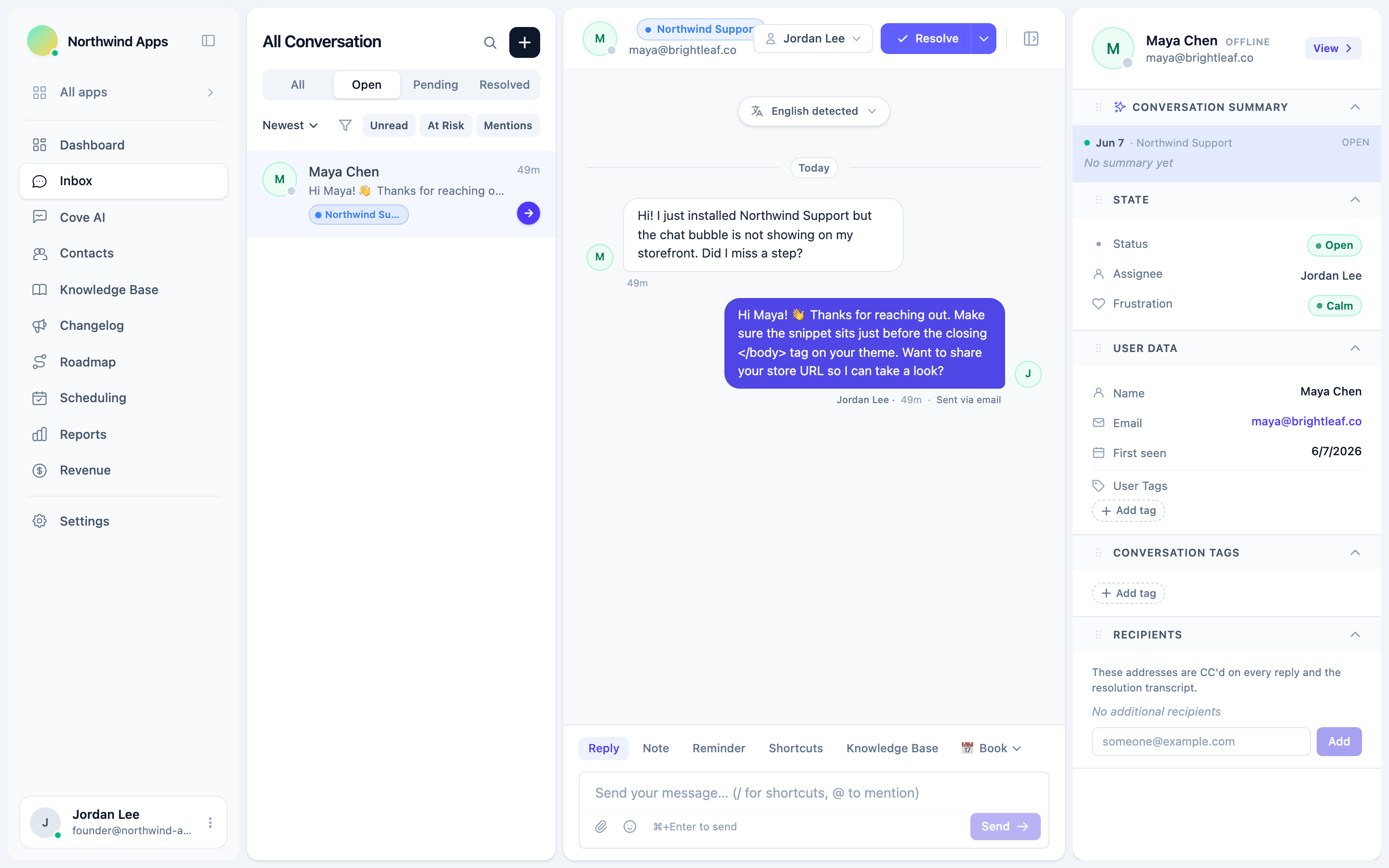
Step 3: See it in your inbox
- In Convot, go to Chat in the left nav.
- The test conversation should appear at the top of the list.
- Open it and send a reply.
Step 4: Confirm the reply appears in the widget
Switch back to the page with the widget. Your reply should appear in the conversation within a second or two. That confirms the full real-time loop is working.
Checking the App key
The most common install mistake is a wrong app_id. To confirm:
- Go to Settings → Apps → [your app] → Setup.
- Copy the
app_idshown in the “App key” card. - Compare it to the value in your
window.Convot = { app_id: "..." }line on the page.
They should match exactly.
Checking the snippet order
The configuration object must appear before the loader script:
<!-- Correct order -->
<script>
  window.Convot = { app_id: "app_YOUR_KEY_HERE" };
</script>
<script async src="https://app.convot.com/widget-loader.js"></script>
If the loader runs before window.Convot is set, it cannot find the app_id and does nothing.
Next steps
- My widget isn’t showing - full troubleshooting list if you’re still stuck.
- Colors and branding - customize the widget to match your product.
Was this article helpful?
Thanks for your feedback!