
 Installing the Widget
App Information Settings
Update your app name, domain, and logo, view read-only metadata like your app key and slug, and delete the app permanently.
App Information is where you update the basic details that identify your app inside Convot. Go to Settings - Apps - [your app] - App Information.
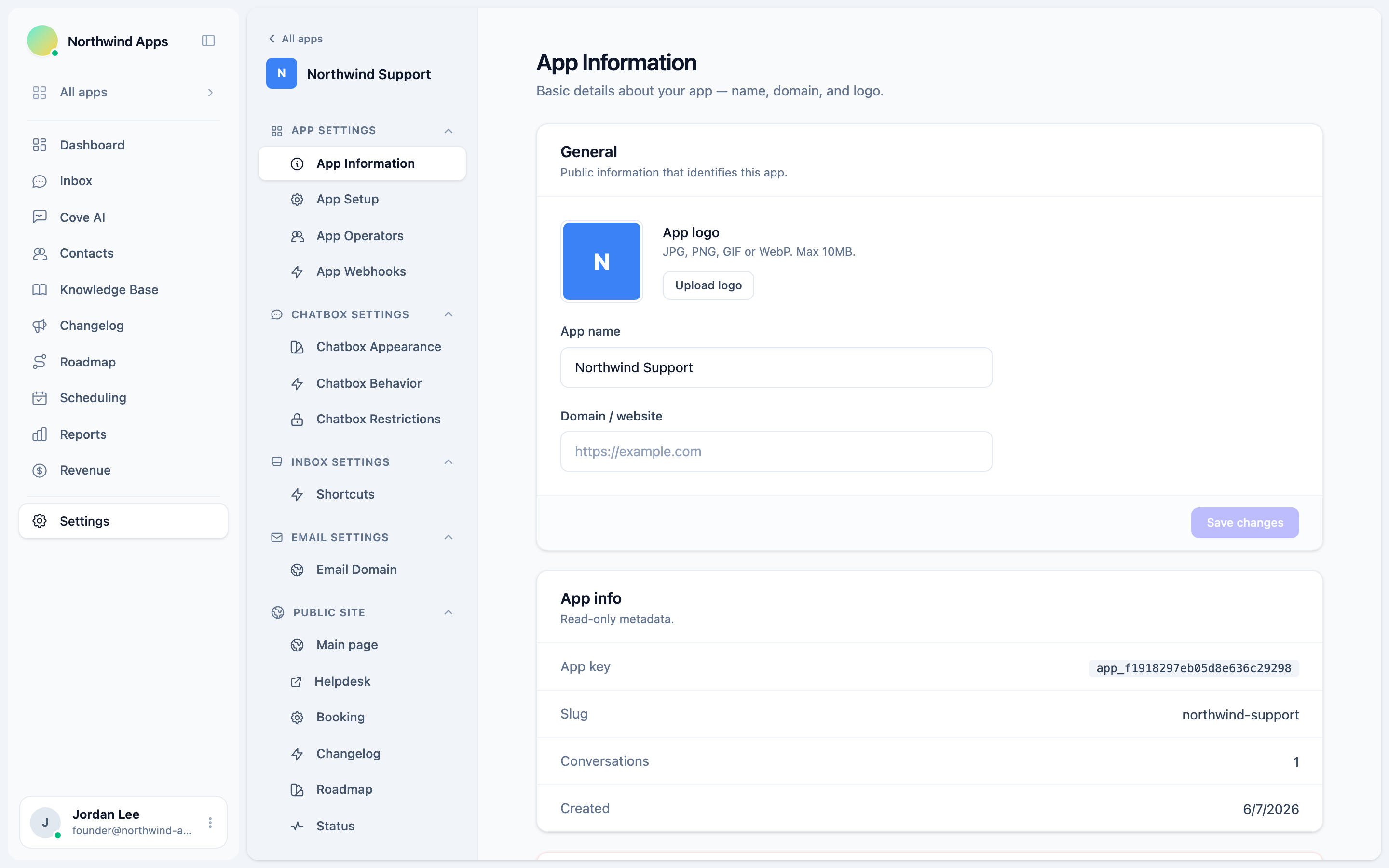
App name
The name shown in the Convot inbox, in admin pages, and (depending on your widget theme) in the widget header.
Type a new name in the App name field and click Save changes. The name must not be blank.
Domain / website
The primary URL of your product or website. This is informational - it does not restrict where the widget can be installed, but it appears in some admin views and is used as context.
Enter a full URL including the scheme (e.g. https://example.com).
App logo
The logo appears in two places: as the app icon in the Convot admin, and (when you turn on Show app logo in chatbox button under Chatbox Appearance) as the launcher bubble icon on your site.
To upload a logo:
- Click Upload logo (or Change logo if one is already set).
- Select an image. Accepted formats: JPG, PNG, WebP, GIF. Maximum size: 10MB.
- A preview appears immediately. Click Save changes to apply.
To remove the current logo:
- Click Remove.
- The logo preview disappears and a colored initial replaces it.
- Click Save changes to persist the removal.
If no logo is uploaded, the widget and admin show a colored square with the first letter of the app name.
Read-only metadata
The App info section below the form shows metadata you cannot edit:
| Field | Description |
|---|---|
| App key | The public identifier used in the embed snippet (app_…). |
| Slug | The URL-safe identifier used for your public help center, changelog, and roadmap URLs. |
| Conversations | Total number of conversations created under this app. |
| Created | The date the app was created. |
The app key and slug are assigned at creation and cannot be changed. Find your app key here or on the Setup page when you need to copy it for the embed snippet.
Deleting the app
The Danger zone section at the bottom of the page contains the Delete app button.
Deleting an app is permanent and cannot be undone. It removes:
- All conversations and messages.
- All contacts captured by this app.
- All helpdesks, articles, webhooks, and shortcuts.
- The widget embed (the chatbox will stop appearing on your site immediately).
Only owners and admins can delete an app. The button is disabled for agents and grayed out with a tooltip. If you see a disabled button, ask an owner or admin to perform the deletion.
To delete:
- Click Delete app.
- A confirmation modal appears showing a summary of what will be removed.
- Type the exact app name into the confirmation field.
- Click Delete app to confirm.
Next steps
- App Key and Identity Secret - how to use the app key and keep the identity secret safe.
- App Operators - control which team members have inbox access to this app.
- Verifying your install - confirm the widget is loading correctly.
Was this article helpful?
Thanks for your feedback!