
 Widget Customization
Chatbox Restrictions
Hide or block the chat widget using vacation mode, URL allowlists or blocklists, country codes, locale codes, and IP addresses.
Chatbox Restrictions let you hide or block the widget for specific pages, countries, locales, IP addresses, or all visitors at once. Find the settings at Settings - Apps - [your app] - Chatbox - Restrictions.
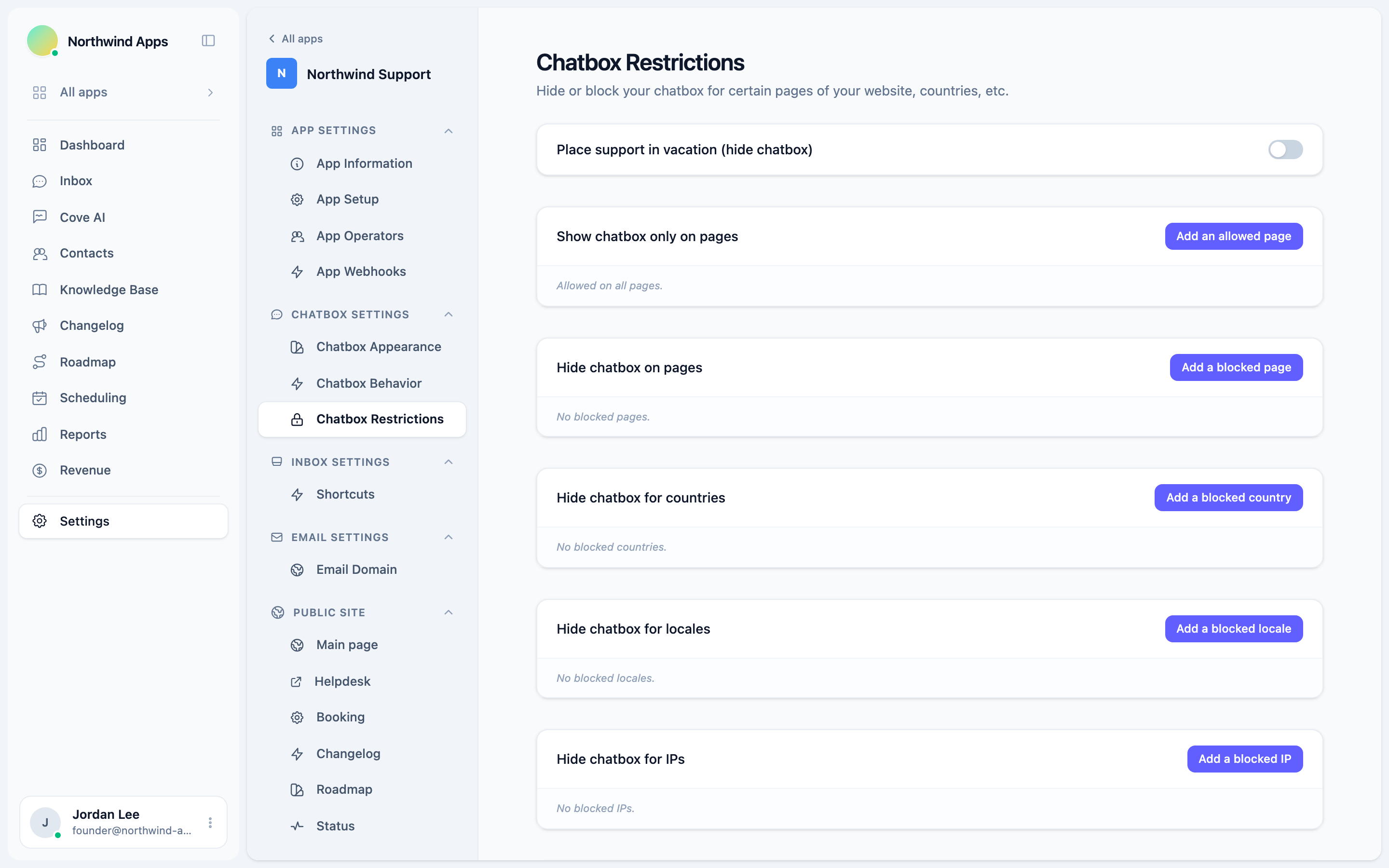
Vacation mode
Place support in vacation (hide chatbox) is a master kill switch. When turned on, the widget launcher disappears for all visitors, everywhere. Use this when your team is fully unavailable - on a company break, at a conference, or during a planned outage - and you want the widget gone rather than showing an away message.
Vacation mode vs. “Hide when all operators are away”
| Vacation mode | Hide when all away | |
|---|---|---|
| Trigger | Manual toggle | Automatic (based on agent status) |
| Scope | Always on or off | Follows live operator presence |
| Location | Chatbox Restrictions | Chatbox Behavior |
Use vacation mode for planned, manually-controlled downtime. Use “Hide when all away” when you want the widget to disappear and reappear automatically as your team comes online and goes offline.
Allowed pages (URL allowlist)
When you add at least one URL pattern here, the widget is visible only on pages that match. It is hidden on every other page on your site.
Click Add an allowed page and enter a URL pattern. Examples:
| Pattern | What it matches |
|---|---|
/pricing |
The exact /pricing path. |
/docs |
The exact /docs path. |
/app |
The path /app only, not /app/settings. |
Allowed pages are evaluated on the path portion of the URL. The widget compares window.location.pathname against each entry you add. Add all pages where you want the widget to appear - if any are missing, it will be hidden there.
Leave the list empty to allow the widget on all pages (the default).
Blocked pages
Add URL patterns here to hide the widget on specific pages while leaving it visible everywhere else. This is the inverse of the allowlist.
Click Add a blocked page and enter a path. Examples:
| Pattern | What it hides |
|---|---|
/admin |
Your admin panel. |
/checkout |
The checkout page. |
/embed |
An embedded iframe page. |
You can use both lists together: the allowlist runs first (if populated), then blocked pages filter further within the allowed set.
Blocked countries
Add two-letter ISO 3166-1 alpha-2 country codes to hide the widget for visitors in those countries. The country is detected from the visitor’s IP address.
Click Add a blocked country and enter the code. Examples: US, IN, FR, DE, CN.
Country filtering is based on IP geolocation and may have edge-case inaccuracies (VPNs, proxies, shared exit nodes). Do not rely on it for security-critical access control.
Blocked locales
Add BCP 47 locale codes to hide the widget for visitors whose browser language matches. This is useful when your support team does not speak a particular language.
Click Add a blocked locale and enter the code. Examples: fr-FR, de-DE, zh-CN, ja-JP, ar.
The locale is detected from the visitor’s browser language setting (navigator.language).
Blocked IPs
Add individual IP addresses to block specific visitors. This is typically used to hide the widget from your own team, automated testing, or bots that would otherwise inflate conversation counts.
Click Add a blocked IP and enter an address. Example: 192.168.1.100.
IP blocking works on IPv4 addresses. It is suitable for hiding the widget from known internal machines, not for security enforcement.
Clearing all block rules
The Clear all block rules (IP and Email) button at the bottom of the page removes every entry from the blocked IPs list in a single action. A confirmation prompt appears before the delete runs.
This does not clear allowed pages, blocked pages, blocked countries, or blocked locales - those must be removed individually by clicking the X next to each entry.
Removing individual entries
Each entry in every list shows an X button. Click it to remove that single entry. The change is saved automatically.
Next steps
- Chatbox Behavior - away message, hide-when-away, and visitor prompts.
- Widget on mobile - responsive layout and the hide-on-mobile toggle.
- JavaScript API - apply restrictions programmatically from your own code.
Was this article helpful?
Thanks for your feedback!