
 Widget Customization
Chatbox Behavior Settings
Configure the default section, home screen, visitor prompts, away message, hide rules, Knowledge Base mode, and multi-conversation settings for your widget.
All behavior options live under Settings - Apps - [your app] - Chatbox - Behavior. Changes apply immediately - no deploy needed.
Chatbox Home
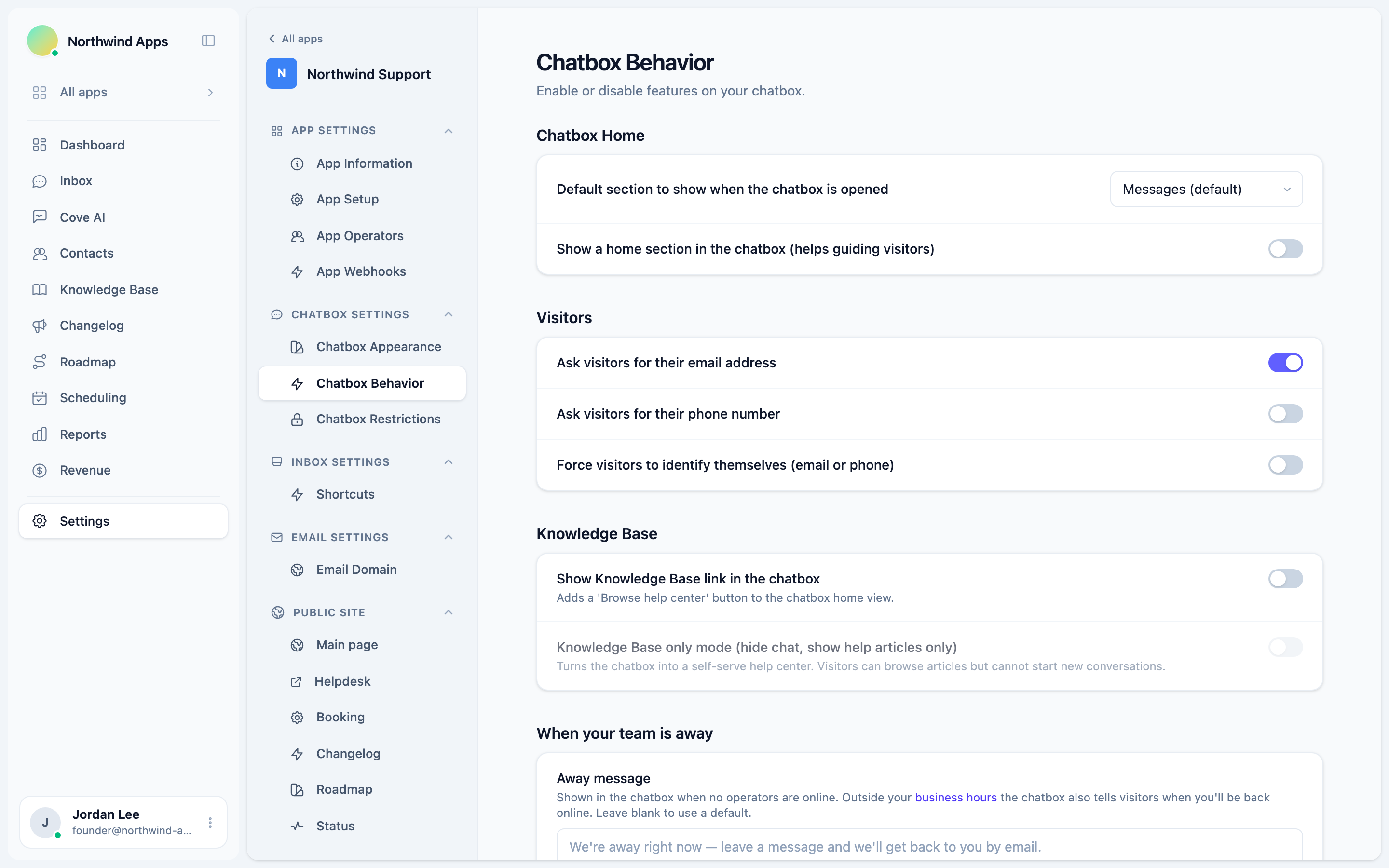
Default section to show when the chatbox is opened
Choose which section greets visitors the moment they open the widget:
| Option | What opens first |
|---|---|
| Messages (default) | The conversation list or new-conversation composer. |
| Home | A guided home screen with quick links and your welcome message. |
| Knowledge Base | Your help center articles. |
If you want visitors to find help articles before they start a chat, set this to Knowledge Base. If you want a guided entry point, use Home. Most apps leave it on Messages.
Show a home section in the chatbox
When turned on, the widget has a dedicated Home tab. The home screen shows a welcome message, quick links to your help center or other sections, and availability status. Turning this off removes the tab entirely - the widget opens straight to Messages (or whichever section you set as the default).
Home section is useful when you have multiple sections active. It acts as a directory. If you only have Messages on, you can safely leave this off.
Visitors
These settings control what the widget asks visitors before they can send their first message.
Ask visitors for their email address
On by default. When on, the widget presents an email prompt to anonymous visitors before they start a new conversation. The email is captured as the contact’s email address and appears in your inbox.
Ask visitors for their phone number
Off by default. When on, a phone field appears alongside the email prompt. Useful if you want to reach visitors by phone or SMS after the chat.
Force visitors to identify themselves (email or phone)
Requires the visitor to fill in at least one contact field before the chat composer becomes active. This setting is only available when at least one of the two prompts above is on - it is grayed out if both are off.
Force identification blocks visitors from chatting at all until they enter their details. Use this only when capturing contact info outweighs allowing frictionless support.
Knowledge Base
Show Knowledge Base link in the chatbox
Adds a “Browse help center” button to the chatbox home view so visitors can jump to your articles without opening a conversation. Requires the Help section to be enabled in Section Toggles.
Knowledge Base only mode
Turns the widget into a self-serve help center. Visitors can browse and search articles, but the chat composer and conversation list are hidden - they cannot start a new conversation.
This setting is disabled (grayed out) until Show Knowledge Base link is turned on first.
Use KB-only mode when you want a docs widget rather than a support chat - for example, embedded in your documentation site or during periods when you are not staffed for live chat.
When your team is away
Away message
The text shown in the widget when no operators are online. It replaces the normal chat composer with a note so visitors know why no one is responding and, optionally, when to expect a reply.
Outside your business hours, the widget also shows an estimated return time alongside your away message.
Leave the field blank to use the default: “We’re away right now - leave a message and we’ll get back to you.”
Hide Chatbox
Hide the chatbox if all operators are away
When on, the widget launcher disappears entirely whenever every operator is away or offline. Visitors who arrive during those periods see no chat bubble.
This completely removes the support option for visitors during off-hours. Make sure you have another channel visible (a link to your help center or an email address) before enabling this. See Vacation mode for a manual equivalent.
Hide the chatbox on mobile devices
When on, the widget is hidden on screens narrower than 768 px and on devices with a mobile user agent. The same behavior can be applied via the JavaScript API with Convot.push(["config", "hide:on:mobile", true]).
Other
Allow visitors to create new conversations (multi-conversational chatbox)
On by default. When on, visitors can start multiple separate conversations over time. Each one appears in the conversation list inside the widget.
When turned off, the widget limits visitors to a single ongoing conversation. Opening the widget always opens the same thread. This simplifies the experience for apps where each merchant will have one long-running support thread.
Advanced restrictions
The Behavior page links directly to Advanced Chatbox restrictions, where you can set vacation mode, URL allowlists and blocklists, blocked countries, blocked locales, and blocked IPs. See Chatbox Restrictions for the full reference.
Next steps
- Chatbox Restrictions - block pages, countries, locales, and IPs.
- Section Toggles - control which sections appear in the widget.
- Availability Display - how online and away states are shown to visitors.
Was this article helpful?
Thanks for your feedback!