
Trigger Rules
Automatically send a chat message to a visitor when a condition matches - time on site, page URL, or new vs. returning - so you can reach out first instead of waiting for them to message you.
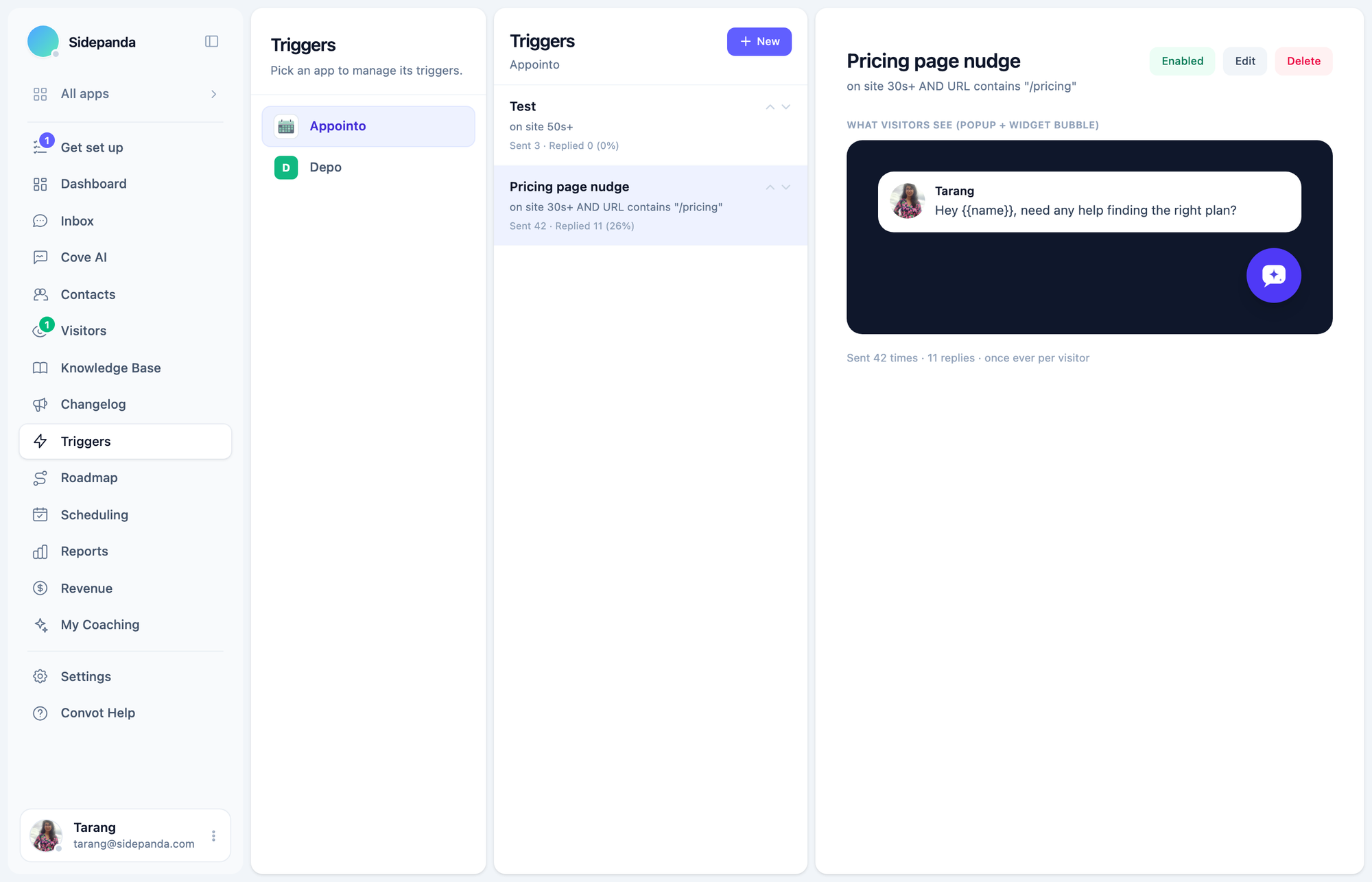
Trigger Rules let Convot reach out to a visitor first, instead of only ever replying. Configure a condition (e.g. “on the pricing page for 30+ seconds”) and a message, and Convot pops it into the chat widget the moment a visitor matches - no conversation is created, and nothing shows up in your Inbox, unless they actually reply.
How rules work
- Rules run in order. The first enabled rule whose conditions all match wins - later rules aren’t evaluated for that visitor.
- Nothing is created until they reply. A trigger firing is just a popup; no Conversation or Message exists yet. If the visitor replies, that reply (and the greeting) land in your Inbox looking exactly like a normal conversation - there’s no “automated” label anywhere a visitor or agent would see.
- A visitor who already has an open conversation with you is never sent a trigger, regardless of any other setting. You shouldn’t get a proactive popup while you’re already mid-conversation with support, so this isn’t something you can turn off.
Conditions
Add one or more conditions - all of them must match for the rule to fire:
| Condition | Matches when… |
|---|---|
| Time on site | The visitor has been on the site at least N seconds |
| Visitor | The visitor is new (never messaged this app before) or returning |
| Page URL | The current page URL contains, doesn’t contain, is exactly, starts with, or ends with a value you set |
The Page URL condition matches on the full URL, including the domain - use starts with or is exactly if you run the widget on more than one domain (e.g. a marketing site and a separate app subdomain) and want a rule to only fire on one of them. contains alone can match both if one domain name is a substring of the other.
How often it fires
Each rule has a Frequency setting:
- Once ever, per visitor (default) - the rule fires at most once for a given visitor, ever.
- Repeat every N days - the rule can fire again for the same visitor after N days have passed since it last fired for them.
Sending as a real teammate
Pick a Send as sender for the rule - any teammate with access to the app. The visitor sees that person’s name and avatar on the popup and in the message itself, not a generic “Support” label. Leave it unset for a sender-less automated look.
Personalizing the message
Click a field above the message box to insert it at your cursor:
-
{{name}},{{email}},{{company}}- the visitor’s own contact fields -
{{agent_name}}- the rule’s chosen sender’s name - Any custom field your app already writes onto contacts (e.g.
{{custom.plan}}) - Convot picks these up automatically from your existing integration’s data
{{name}} and {{agent_name}} fall back to “there” and “our team” if the value is missing. For anything else, you can set your own fallback text when you insert it (e.g. show “your team” if {{company}} isn’t known), or leave it blank.
Setting up a rule
- Go to Triggers in the main nav and pick an app.
- Click New.
- Give it a name (for your own reference - visitors never see it), pick a sender, and set the frequency.
- Add one or more conditions.
- Write the message, personalizing it with the fields above.
- Save.
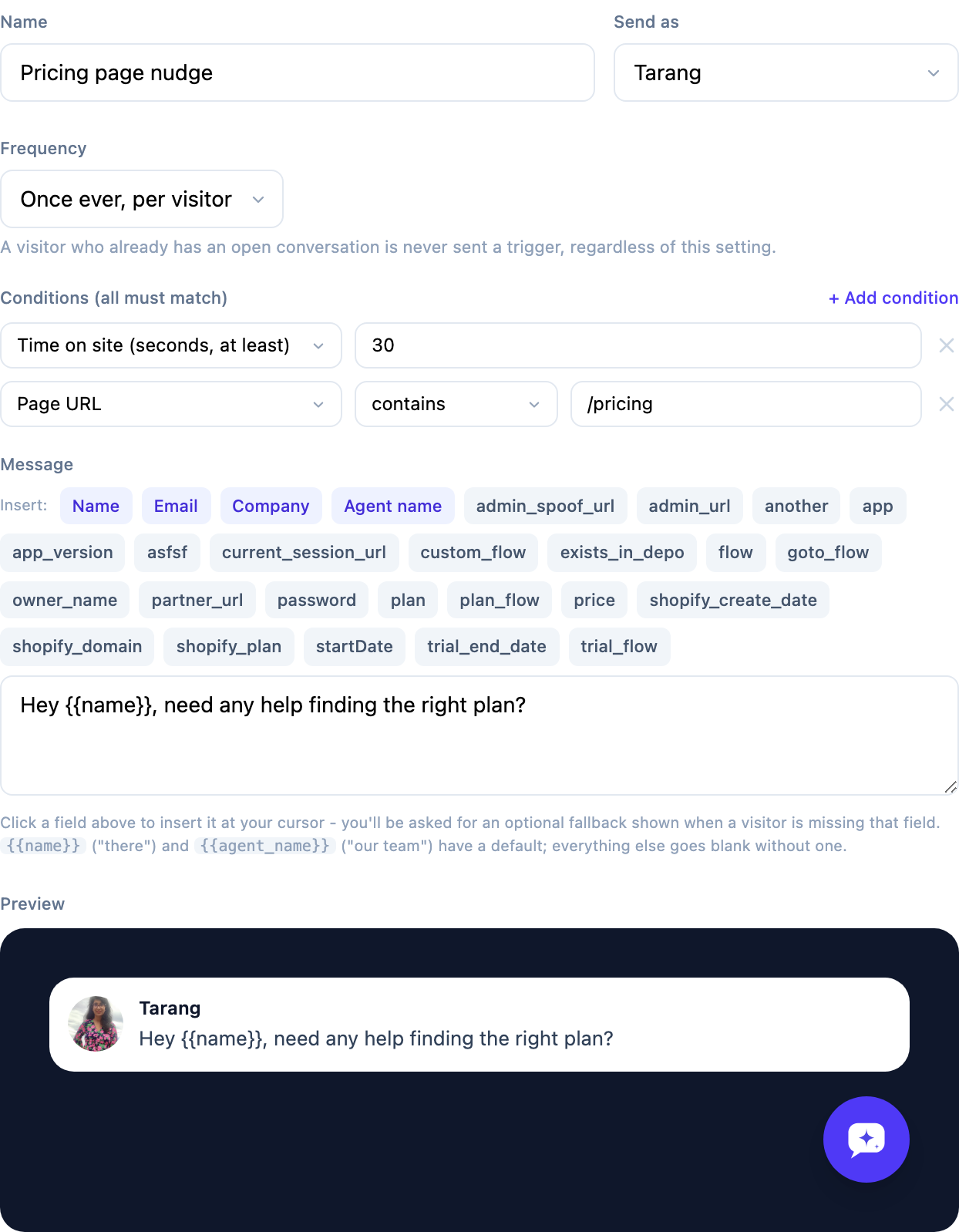
The Preview at the bottom of the editor mimics exactly what the visitor sees - the popup and the launcher bubble - updating live as you type.
Analytics
Each rule tracks how many times it’s Sent and how many of those turned into a Reply, shown on the rule list and detail view.
Related
- Live Visitors - the real-time presence data Trigger Rules evaluate against.
Was this article helpful?
Thanks for your feedback!