
 Contacts & People
The Contact Sidebar
The context panel that slides in during a conversation - what it shows and how to use it.
The contact sidebar is the right panel that appears when you open a conversation. It gives you a full picture of who you’re talking to without leaving the inbox.
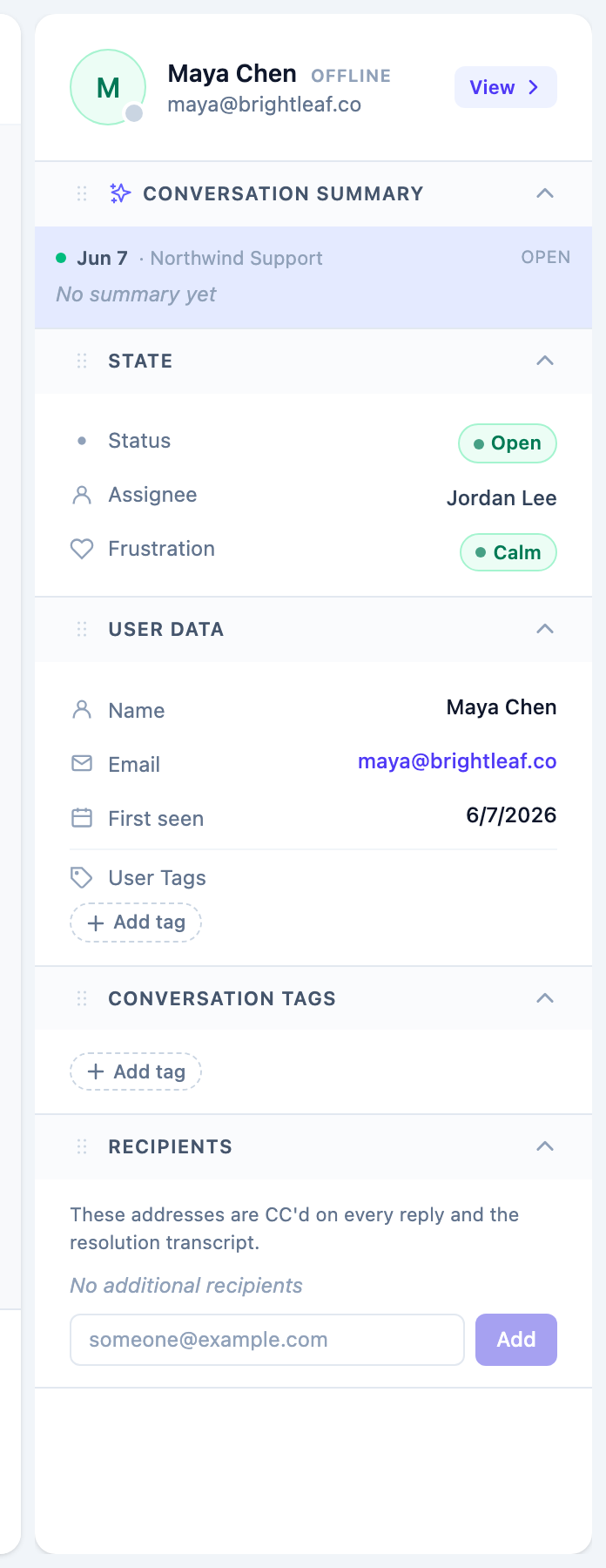
What’s in the sidebar
Contact header
At the top you see:
- The contact’s avatar (or initials if no avatar).
- Their name or email.
- Their online/idle/offline status with a colored dot and “last seen” timestamp.
- A View link to open the full contact profile page.
Sections
The sidebar has draggable sections you can reorder to your preference. The order is saved per user in the browser.
Default sections:
- Conversation summary: the most recent conversation summary, status, and app name. Clicking it navigates to that conversation.
- Shopify (if the Shopify integration is enabled): merchant data including MRR, install date, plan, and shop domain.
- Contact details: email, phone, company, location, and external ID.
-
Custom data: key-value pairs sent by your app via
Convot.identify(). See Custom data. - Contact tags: tags on the contact, with an inline picker to add or remove them.
- Conversation tags: tags on the current conversation, with an inline picker.
- Conversation history: all past conversations for this contact across all apps, in reverse order. Click any row to open that conversation.
- Contact events: recent timestamped events from your app. See Contact events.
CC emails
You can add CC email addresses to a conversation from the sidebar. CC recipients receive a copy of outgoing replies by email.
Collapsing and expanding sections
Click a section header to collapse or expand it. Collapsed sections save space when you’re focused on specific data.
Opening the full profile
Click View in the sidebar header (or navigate to /contacts/:id) to see the full contact profile with the complete event timeline, all conversations, and editable fields.
Contacts are organization-wide
The sidebar shows the same contact record regardless of which app’s conversation you have open. A customer who contacted both of your apps has one profile with conversation history from both apps.
Was this article helpful?
Thanks for your feedback!