
 Inbox & Conversations
Starting a Conversation
Reach out to a contact proactively by starting a new conversation from the inbox - no inbound message needed.
Conversations normally start when a customer sends you a message. But you can also start one yourself - useful for proactive outreach, follow-ups, or onboarding nudges.
Open the new conversation dialog
Click the + (compose) button at the top of the inbox list on the left. The New conversation modal opens.
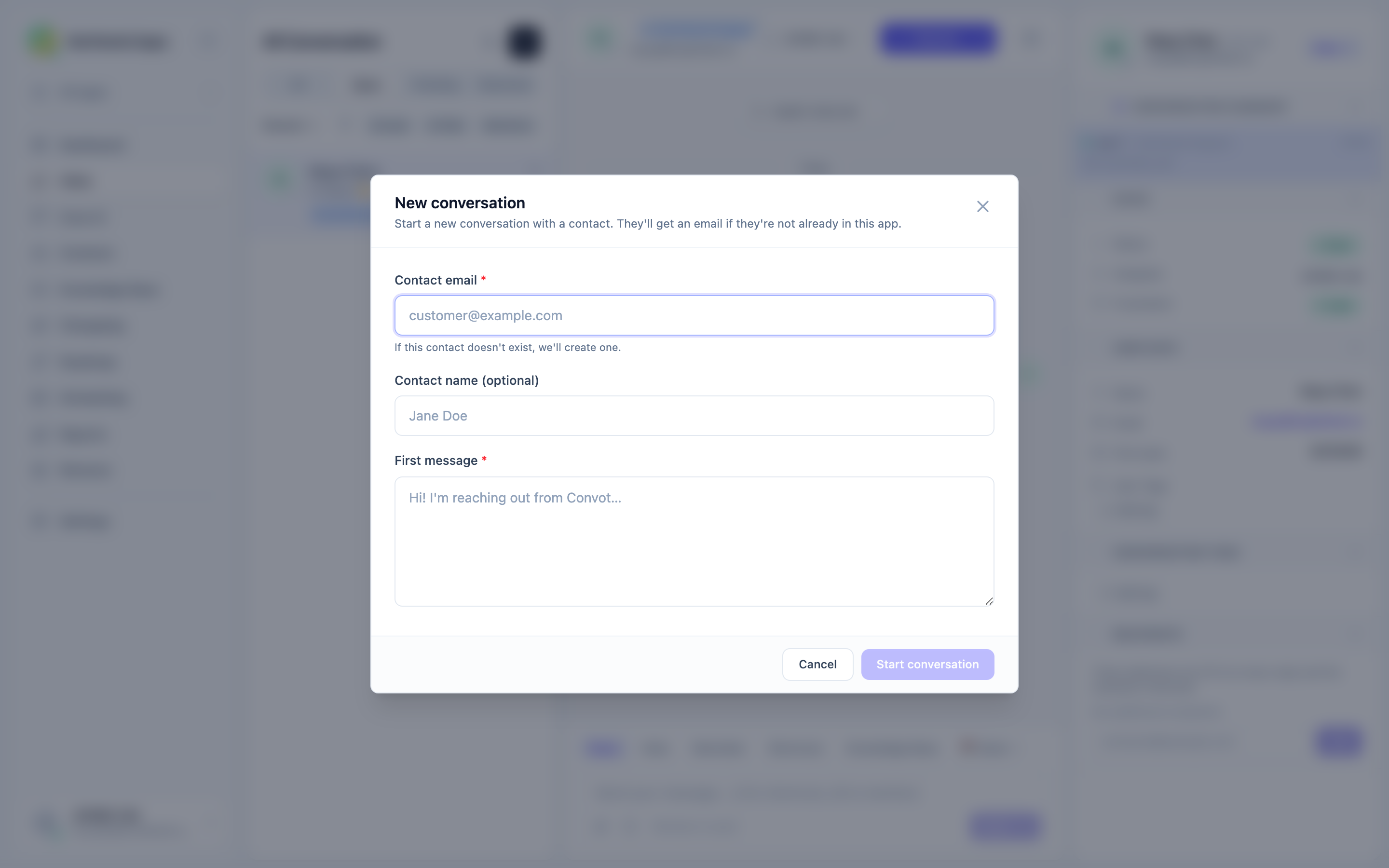
Fill in the details
App
If you have more than one app, a dropdown lets you choose which app this conversation belongs to. The conversation will appear in that app’s inbox and the contact will be associated with it.
If you only have one app, the selector is hidden and the only app is used automatically.
Contact email (required)
Enter the customer’s email address. If a contact with that email already exists in the selected app, the conversation is created for them. If not, a new contact record is created automatically - you do not need to create the contact separately first.
Contact name (optional)
If you are creating a new contact, enter their name here. If the contact already exists, this field is ignored.
First message (required)
Write the opening message. This is the first outgoing message the contact sees. It is sent as a normal outgoing reply - visible to the customer.
The contact is notified by email if they are not actively viewing the widget. The email subject comes from the first few words of your message.
Send
Click Start conversation. The new conversation opens immediately in the inbox and the contact receives an email notification.
The conversation is assigned to you (the agent who created it) and starts with Open status.
Who can start conversations
Any agent or admin can start a conversation from the inbox. There is no minimum permission level.
Was this article helpful?
Thanks for your feedback!